Your Mac Says It Has Run Out of Application Memory? Here’s How I Fixed It

Seeing “Your system has run out of application memory” on your Mac can be alarming, especially when it appears repeatedly and prevents you from using your apps normally.
I’ve found that this message is not simply a warning that your Mac needs more RAM. It can also appear when an app consumes an excessive amount of memory, when macOS relies heavily on swap, or when your startup disk is running critically low on free space.
Here’s how I approach the problem: first identify what is consuming memory, then address the specific cause instead of immediately assuming that the Mac needs more RAM.
What Does “Your System Has Run Out of Application Memory” Mean?
The message means macOS does not currently have enough available memory to keep applications running normally.

On a Mac, memory generally refers to RAM, which temporarily holds the data and instructions that active applications need. Storage, by contrast, is where your files, applications, and operating system are kept permanently.
These two resources are related, but they are not interchangeable.
When physical RAM becomes heavily used, macOS can use virtual memory and swap. In simple terms, macOS moves some data that is not currently needed from RAM to the startup disk and brings it back when necessary.
This allows the Mac to continue operating even when RAM is under pressure, but it depends on having sufficient free storage space. If memory pressure is extremely high and the startup disk is also running low on space, you may eventually see the “Your system has run out of application memory” message.
Common causes include:
- Running many applications or memory-intensive apps at the same time
- Keeping a large number of browser tabs or extensions open
- An application with a memory leak
- Very little free space remaining on the startup disk
- A macOS or application bug
- In less common cases, unwanted or malicious software consuming system resources
The problem is not limited to Apple silicon Macs. Although some users report encountering it after a macOS update on an M1 or other Apple silicon Mac, Intel-based Macs can also experience the same problem.
How to Check Memory Usage on Your Mac
Before closing apps or deleting files, I recommend checking what is actually consuming your Mac’s memory.
macOS includes a built-in utility called Activity Monitor, which works much like Task Manager on Windows.
Open Activity Monitor, then select the Memory tab.
I saw the applications and processes currently using memory, along with the amount each one is consuming.

More importantly, look at the information at the bottom of the window:
- Memory Used — the amount of memory currently being used
- App Memory — memory being used by apps and their processes
- Wired Memory — memory that macOS cannot compress or move to the startup disk
- Compressed — memory that macOS has compressed to make better use of RAM
- Swap Used — the amount of startup-disk space currently being used for memory swapping
- Memory Pressure — an overall indication of how effectively your Mac is managing available memory
The Memory Pressure graph is particularly useful. Instead of focusing only on the amount of RAM an individual app uses, I checked whether my Mac is consistently experiencing high memory pressure.
If one application is consuming an unusually large amount of memory, that gives me a much better starting point for troubleshooting.
How to Fix “Your System Has Run Out of Application Memory”
I recommend starting with the least disruptive options.
1. Force Quit Memory-Hungry Applications
If Activity Monitor shows that one or more applications are consuming an unusually large amount of memory, close them first.
You can select the application in Activity Monitor, click the Stop button, and choose Quit. If the application does not respond, choose Force Quit.
You can also use Apple menu > Force Quit to close an unresponsive application.
This is particularly useful when the error appears while using memory-intensive software or when an application suddenly starts consuming much more memory than usual.
However, force-quitting an app is usually a temporary fix. If the same application repeatedly consumes excessive memory, investigate it further rather than repeatedly closing it.
2. Restart Your Mac
If memory usage remains unusually high after closing applications, restart the Mac.
A restart clears the current memory state and removes temporary processes that may have accumulated during a long session.
If the error disappears after restarting but returns later, pay attention to which applications you were using immediately before it happened. That pattern can help identify a problematic app or memory leak.
3. Update macOS and Your Applications
If the problem started after a macOS update or occurs only with a particular application, check for available updates.
For macOS, open Apple menu > System Settings > General > Software Update.
You should also update the applications involved in the problem. Developers regularly release updates to address bugs, compatibility problems, and excessive resource usage.
If a specific app consistently causes memory pressure, check its release notes or support documentation for known memory-related issues.
If updating does not help, reinstalling the problematic application can also be worth trying.
4. Remove Unnecessary Browser Extensions
Your web browser can consume a significant amount of memory, particularly when you keep many tabs open or use extensions that continue running in the background.
Get Sylvia Nora’s stories in your inbox
Join Medium for free to get updates from this writer.
If the problem mainly occurs while using Safari, Chrome, Firefox, or another browser, temporarily disable unnecessary extensions and see whether memory usage improves.
For example, in Safari, open Safari > Settings > Extensions and remove extensions you no longer need.
In Chrome, open the Extensions management page and disable or remove extensions that are unnecessary or unfamiliar.
In Firefox, open Add-ons and themes > Extensions and remove extensions you don’t need.
Don’t assume that every extension is responsible for the problem. The useful approach is to disable unnecessary extensions and observe whether the memory issue changes.
5. Close Unnecessary Browser Tabs and Applications
You don’t necessarily need to close everything on your Mac, but keeping a large number of applications and browser tabs open can increase memory pressure.
Start by closing programs and browser tabs that you are no longer using, particularly memory-intensive applications.
If you regularly work with demanding software, such as video editors, virtual machines, development environments, or large creative applications, try to avoid running several of them simultaneously when possible.
6. Free Up Space on Your Startup Disk
RAM and storage are different resources, but storage space can still affect how macOS manages memory.
When macOS needs to swap memory to the startup disk, it needs available storage space to do so. If your startup disk is almost full, memory management can become more difficult.
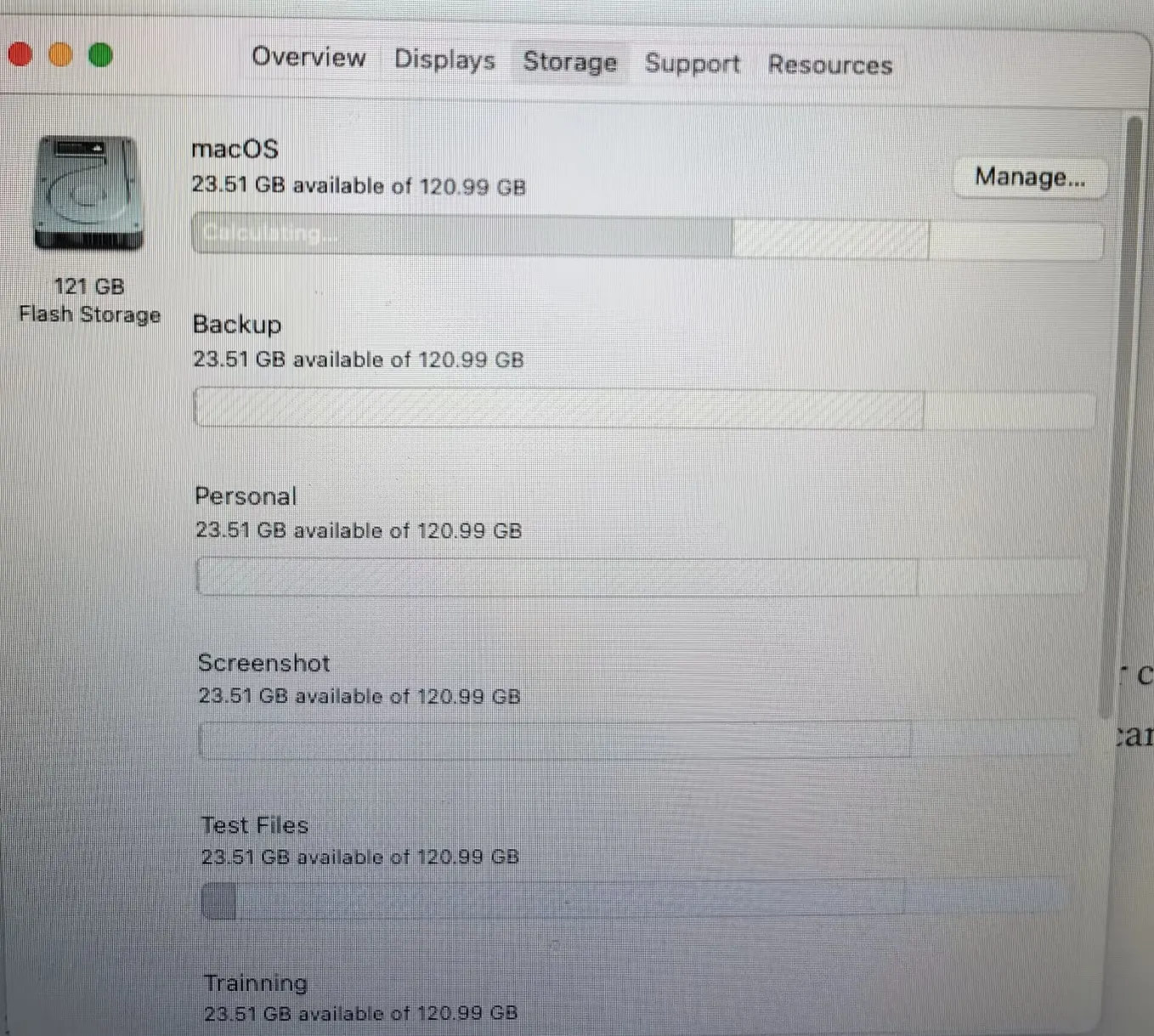
To check available storage, open:
Apple menu > System Settings > General > Storage
On older versions of macOS, you may instead find storage information under Apple menu > About This Mac > Storage.
If your startup disk is nearly full, remove data you no longer need. Large downloads, unused applications, old backups, media files, and other unnecessary data are good places to start.
You can also use macOS’s built-in storage recommendations to identify opportunities to free up space.
The important point is that freeing storage does not increase your physical RAM. It simply gives macOS more room to use the startup disk for swap and other temporary operations.
7. Check for an Application Memory Leak
If the error keeps returning even though you don’t have an unusually large number of applications open, look for a memory leak.
A memory leak occurs when an application continues using memory without properly releasing it when that memory is no longer needed.
One practical way to identify this is to monitor Activity Monitor.
If you notice that a particular application steadily consumes more and more memory during normal use, even when you aren’t doing anything particularly demanding, that application deserves further investigation.
Try updating or reinstalling it. If the problem continues, check the developer’s support resources or consider using an alternative application.
This approach is more useful than simply assuming that your Mac’s RAM is insufficient.
8. Consider Whether Your Mac Has Enough RAM
If your Mac consistently experiences high memory pressure while running applications that you genuinely need, the hardware itself may be the limiting factor.
More RAM allows a Mac to keep more application data readily available without relying as heavily on compression and swap.
However, you usually cannot upgrade the RAM in a modern Mac after purchase. On many recent Mac models, the memory is integrated into the system architecture and is not designed to be replaced or upgraded by the user.
If you’re buying a new Mac and already know that your workload involves memory-intensive applications, choosing a configuration with more memory is therefore an important decision.
For an existing Mac, however, I would not jump straight to buying a new computer just because this message appeared once. First determine whether a particular application, insufficient free storage, or another software issue is causing the memory pressure.
Don’t Confuse Memory Problems With Storage Problems
One of the easiest mistakes to make here is treating RAM and storage as the same thing.
They are not.
RAM affects how much data your Mac can actively work with, while storage holds your files, applications, and operating system. A Mac with plenty of storage can still run out of available memory, and a Mac with plenty of RAM can still have a nearly full startup disk.
The two can interact because macOS uses storage for swap when RAM is under pressure, but freeing disk space does not magically turn that storage into additional RAM.
Understanding this distinction makes troubleshooting the error much easier.
My Recommended Troubleshooting Order
If I encountered this error on a Mac, I wouldn’t immediately start deleting files or assume the RAM is defective.
I’d work through the problem in this order:
1. Check Activity Monitor.
Find out whether memory pressure is actually high and which apps are consuming the most memory.
2. Close or force quit the problematic apps.
See whether memory pressure returns to normal.
3. Restart the Mac.
This helps determine whether the problem was temporary.
4. Look for a recurring culprit.
If the same application or browser repeatedly causes the problem, update, reinstall, or investigate it.
5. Check available storage.
Make sure the startup disk has enough free space for normal macOS operation and memory swapping.
6. Consider the hardware limitation.
If your normal workload consistently exceeds what the Mac can comfortably handle, insufficient RAM may ultimately be the underlying limitation.
This order helps separate a temporary software problem from a genuine hardware limitation.
The “Your system has run out of application memory” message doesn’t automatically mean that your Mac needs more RAM.
In many cases, the first step is simply to identify what is consuming memory. An application with a memory leak, too many browser tabs, excessive extensions, or a nearly full startup disk can all contribute to the problem.
Start with Activity Monitor, check Memory Pressure, identify the resource-hungry process, and then work through the likely cause.
If the problem keeps returning despite troubleshooting — and especially if it happens during your normal workload — it may be time to consider whether your Mac’s available memory is sufficient for the way you use it.
The key is to diagnose the cause before treating the symptom.