Linux for Developers: What I Learned Beyond Memorizing Commands
Why I Decided to Strengthen My Linux Fundamentals
As developers, we spend a lot of time writing application code. We work with Java, Spring Boot, databases, REST APIs, Docker, and cloud platforms.
But when an application needs to be deployed, a container fails to start, a configuration file contains an unexpected value, or a server denies access to a file, we often need to step outside the application code and work directly with the operating system.
That is where Linux fundamentals become important.
I started revisiting Linux with a simple goal: understand what I am doing in the terminal instead of blindly remembering commands.
While working through a Linux tutorial, I realized that many everyday tasks become easier once we understand a few underlying concepts.
This article covers the important lessons from that learning journey.
1. The Terminal Is More Than a Place to Type Commands
One of the first concepts I explored was accessing Linux systems.
A Linux system can provide a graphical desktop, a local text console, or a remote command-line session. On servers, remote text-based access is particularly important because many server installations do not include a graphical interface.
For remote access, SSH is a central tool.
ssh username@server-ipThis command connects to a remote machine using the specified account and address, assuming SSH is available and authentication succeeds.
The important distinction is that the SSH client runs on the machine initiating the connection, while the SSH server accepts connections on the remote machine.
This matters when troubleshooting connectivity. A working client does not guarantee that the remote server is reachable, listening on the expected port, or configured to accept your authentication method.
SSH also encrypts the communication, making it preferable to older unencrypted remote-login protocols.
My takeaway: Understanding how I connect to a machine is the first step toward understanding how I administer it.
2. Stop Trying to Memorize Every Command Option
Linux provides many commands, and each command may have multiple options.
Trying to remember all of them is inefficient.
Instead, I learned to use three useful documentation tools.
Quick help
ls --helpWhen I remember the command but forget an option, this is a good starting point.
Manual pages
man journalctlManual pages provide more detailed information about a command’s purpose, syntax, options, and behavior.
Searching for commands
apropos directorySometimes I know what I want to do but cannot remember which command performs the operation. Searching manual-page descriptions can help identify a suitable command.
Tab completion provides another shortcut. Pressing Tab can complete commands, filenames, and directory names or show possible matches.
The bigger lesson is simple: the ability to find reliable information is more valuable than memorizing every option.
3. Understand the Filesystem Before Working with Files
Linux organizes files and directories in a hierarchy called the filesystem tree.
The root directory is /. Beneath it are directories such as /home, /etc, /var, and /usr.
Understanding paths is essential when working on a remote server or inside a container.
Consider these two paths:
/home/developer/application/config.properties
config.properties
The first is an absolute path. It begins at the root directory.
The second is a relative path. Its meaning depends on the current working directory.
To see the current location:
pwdTo change directories:
cd /var/log
cd ..
cd -
These commands help navigate the filesystem without repeatedly typing long paths.
Everyday file operations
ls -alh
touch application.log
mkdir logs
cp application.log logs/
mv application.log application-backup.log
rm application-backup.log
Each command performs a different operation: listing, creating, copying, renaming, or deleting.
The commands themselves are straightforward. The more important skill is understanding the source and destination of each operation.
For example, rm does not behave like moving a file to a graphical desktop's recycle bin. Depending on the environment, the deletion may be difficult or impossible to reverse.
When learning, I prefer to practise these operations inside a disposable directory.
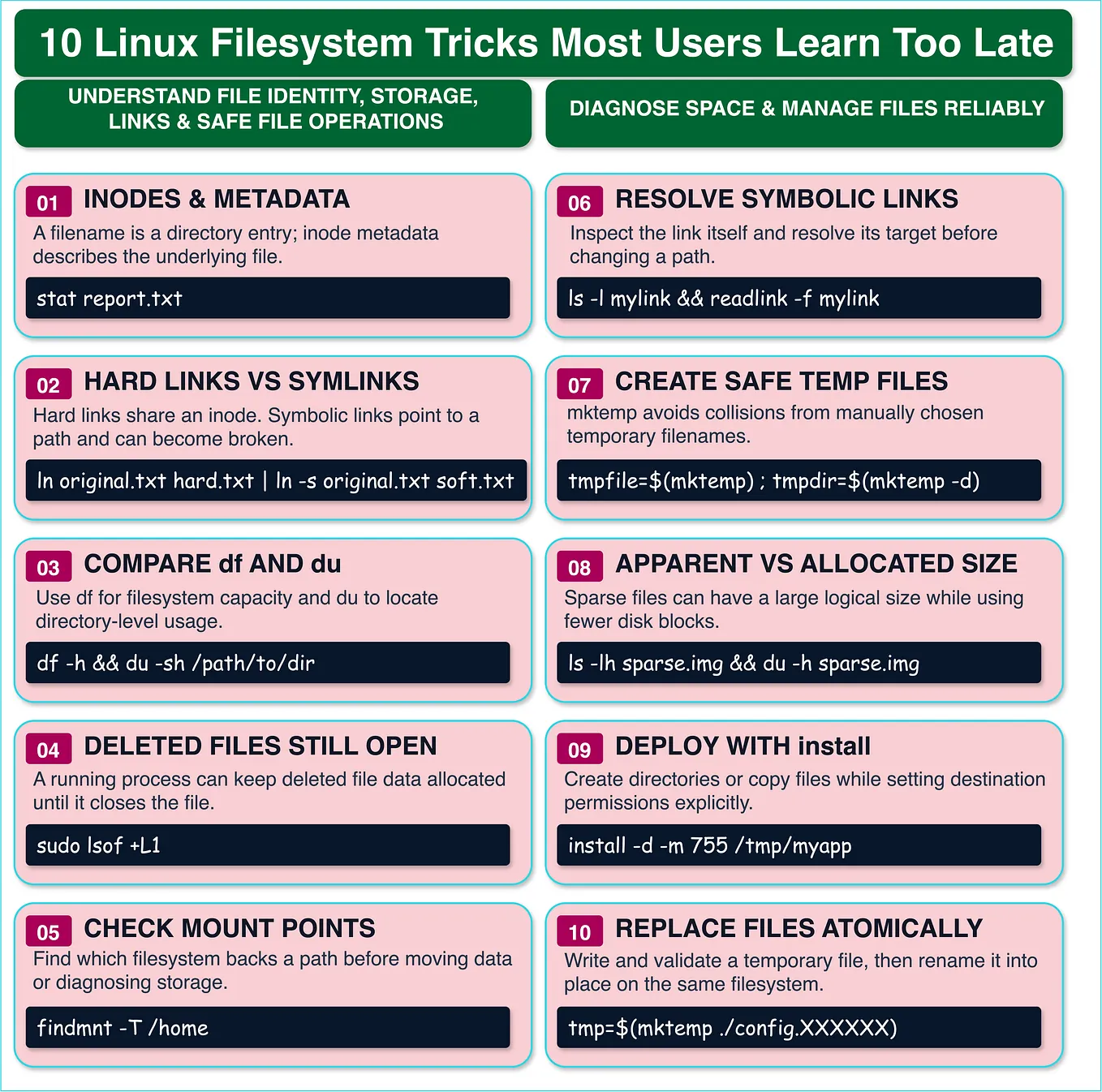
4. Hard Links, Symbolic Links, and Inodes
This topic helped me understand that a filename and the underlying file data are not exactly the same thing.
Linux filesystems use inodes to store metadata associated with files. Directory entries connect filenames to those inodes.
The stat command helps inspect this information:
stat example.txtHard links
ln example.txt example-hardlink.txtA hard link creates another directory entry that references the same inode.
Both names refer to the same underlying file. Removing one name does not necessarily remove the file’s data while another hard link remains.
Symbolic links
ln -s example.txt example-symlink.txtA symbolic link points to a pathname rather than directly referencing the same inode.
This means that if the target path changes or disappears, the symbolic link may no longer resolve correctly.
These distinctions matter when managing shared files, application directories, backup structures, and deployment paths.
5. File Permissions Explain Many Access Errors
Have you ever encountered a message such as this?
Permission deniedIt is tempting to assume that the user simply needs administrator access. However, the actual problem may be more specific.
Linux traditionally evaluates permissions using three classes:
- Owner
- Group
- Others
Each class can have read, write, and execute permissions.
Consider this permission string:
-rw-r-----It means the owner can read and write, the group can read, and others have no permissions.
We can inspect permissions with:
ls -l example.txtChanging permissions
Symbolic notation lets us modify specific permission bits:
chmod u+x script.sh
chmod g+w shared.txt
chmod o-r private.txt
Numeric notation represents read, write, and execute using 4, 2, and 1.
For example:
chmod 640 example.txtThe resulting permissions are:
- Owner: read and write
- Group: read
- Others: no access
Ownership can be changed with commands such as:
sudo chown developer:developers example.txtWhy directory permissions are different
For directories, execute permission controls traversal. Read permission allows directory entries to be listed, while write permission allows entries to be created or removed, subject to other restrictions.
This explains why having permission to read a file does not automatically mean that you can reach it through every directory in its path.
Permission troubleshooting becomes easier when we inspect the file, its owner and group, the relevant directory permissions, and the identity of the current user.
6. Find the File Before Trying to Fix It
In a real development environment, configuration files, logs, and application artifacts may be distributed across several directories.
The find command helps locate files using conditions.
Search by filename:
find /home -name "application.properties"Search for regular files:
find /var/log -type fSearch for files with a particular extension:
find /home -type f -name "*.log"Search by size:
find /var/log -size +10MSearch by modification time:
find /home -mtime -7The final example searches for entries modified within the last seven 24-hour periods, subject to the command’s time-rounding behavior.
Get Dhivakar T’s stories in your inbox
Join Medium for free to get updates from this writer.
What makes find useful is that we can combine multiple conditions. Instead of listing everything and manually scanning the output, we can narrow the search to files matching the characteristics we care about.
For application troubleshooting, this can reduce unnecessary exploration.
7. Use grep to Investigate Configuration Files and Logs
Finding a file is only part of the task. We often need to identify a particular line within it.
That is where grep becomes useful.
For example:
grep "ERROR" application.logThis displays lines containing ERROR.
For a case-insensitive search:
grep -i "error" application.logFor a recursive search through directories:
grep -r "ERROR" /var/log/For matching whole words:
grep -w "error" application.logFor excluding lines beginning with a comment marker:
grep -v '^#' /etc/login.defsThese examples demonstrate that searching can be based on more than literal text.
Regular expressions
Regular expressions allow us to describe patterns.
For example:
grep '^PASS' /etc/login.defsThe ^ operator matches the beginning of a line.
grep '7$' /etc/login.defsThe $ operator matches the end of a line.
To search for a literal period:
grep '\.' /etc/login.defsA period normally represents any single character in the basic regular-expression syntax, so the backslash changes how it is interpreted here.
Extended regular expressions provide additional operators in a more convenient form:
grep -E '0+' application.logThis pattern matches one or more consecutive zeros.
I found this especially useful because the same principle applies to searching source code, filtering logs, and investigating configuration files.
A developer does not always need to open a large file and read it line by line. A carefully constructed search pattern can help isolate the relevant information.
8. User Accounts and Identity Matter
Linux supports multiple users, and each user has an identity associated with a numeric user ID and group memberships.
To inspect a user:
id developer
groups developer
An administrator may create a user with:
sudo useradd -m developer
sudo passwd developer
The -m option requests a home directory, while passwd sets the account password.
Account administration can also involve modifying user attributes, managing group membership, and configuring password or account expiration.
For example:
sudo usermod -L developer
sudo usermod -U developer
These commands lock and unlock password-based authentication for the account. Their precise implications depend on the system’s authentication configuration.
The key concept is that a user account is more than a username. It is part of the system’s identity and access-control model.
9. Resource Limits Protect System Stability
Linux systems run many processes, and those processes consume resources.
Resource limits can constrain certain activities within a process or user session.
The ulimit command displays supported limits:
ulimit -aYou can inspect a particular limit, such as the user-process limit:
ulimit -uA limit can sometimes be adjusted for the current shell:
ulimit -u 5000The exact behavior depends on the resource, current soft and hard limits, and system configuration.
Why does this matter?
Imagine a development or test environment where a process creates too many child processes. Resource limits can help prevent a user session from consuming unlimited process slots.
However, resource limits are not a complete solution to resource management. Monitoring, workload configuration, and capacity planning are also important.
10. Administrative Privileges and sudo
Not every user should be allowed to change system-wide settings.
Linux separates ordinary user activities from administrative operations.
The sudo command lets an authorized user execute a command with elevated privileges.
For example:
sudo systemctl status sshdThe service name can vary by distribution.
Some systems use an administrative group such as wheel to control which users may use sudo.
groups
sudo gpasswd -a developer wheel
Group membership and authorization rules must be managed carefully. Adding a user to a privileged group can grant broad administrative power.
For more specific access rules, administrators can configure the sudoers policy using:
sudo visudoThe principle I take from this section is that elevated privileges should be used deliberately, not automatically.
If a command fails, first understand why it failed. Do not immediately prefix every command with sudo.
11. Understanding the Root Account
The root account is the traditional Linux superuser. It has extensive authority over the operating system.
Administrators can obtain a privileged shell with:
sudo -iThe su command can also switch to another account:
su -Password-based access to the root account may be locked or configured differently depending on the Linux distribution.
Commands such as the following can alter root-password access:
sudo passwd root
sudo passwd --lock root
sudo passwd --unlock root
These operations should be performed only when there is a clear administrative requirement.
Locking a password does not necessarily disable every authentication method. Conversely, enabling password-based root login can increase exposure.
Before changing root access, confirm that an authorized administrative route remains available. Otherwise, you may make future system maintenance significantly more difficult.
12. Turn Reading into Practical Experience
The most useful part of learning Linux is applying the concepts rather than simply reading the documentation.
I would recommend the following practice routine for developers who are getting started:
Exercise 1: Navigate the filesystem
Use pwd, ls, and cd to explore a Linux environment.
Exercise 2: Manage test files
Create directories and files, then practise copying, moving, and deleting them.
Exercise 3: Explore metadata
Use stat and ls -l to inspect ownership, permissions, and inode information.
Exercise 4: Experiment with links
Create hard links and symbolic links. Observe what happens when one filename is removed or a symbolic-link target changes.
Exercise 5: Search for files
Use find with filename, file-type, size, and modification-time conditions.
Exercise 6: Search text
Use grep, anchors, character sets, and extended regular expressions against test files.
Exercise 7: Understand identities
Inspect user IDs and group membership. If you have an isolated environment with administrative access, create a test user and examine its account information.
Exercise 8: Study administrative controls
Explore resource limits, sudo, and root-account configuration without experimenting on a production machine.
For each exercise, consult the manual page and verify the result of every command.
Final Thoughts
Linux becomes easier to work with when we stop treating commands as isolated pieces of syntax and start understanding the concepts behind them.
Remote access explains how we reach a server. Filesystem paths explain how we navigate it. Inodes and links explain how filenames relate to file data. Permissions explain access decisions. Search tools help us investigate large directory trees and text files. User administration and resource limits explain how a shared system can be managed responsibly.
These concepts are relevant far beyond Linux administration. They support everyday backend development, container troubleshooting, cloud deployment, and DevOps work.
My focus going forward is to keep practising these fundamentals in a real Linux environment and gradually apply them to practical deployment and troubleshooting scenarios.
The goal is not to memorize every command. The goal is to understand the system well enough to know what to do, why to do it, and how to verify the result.
#Linux #DevOps #BackendDevelopment #SoftwareEngineering #CloudComputing