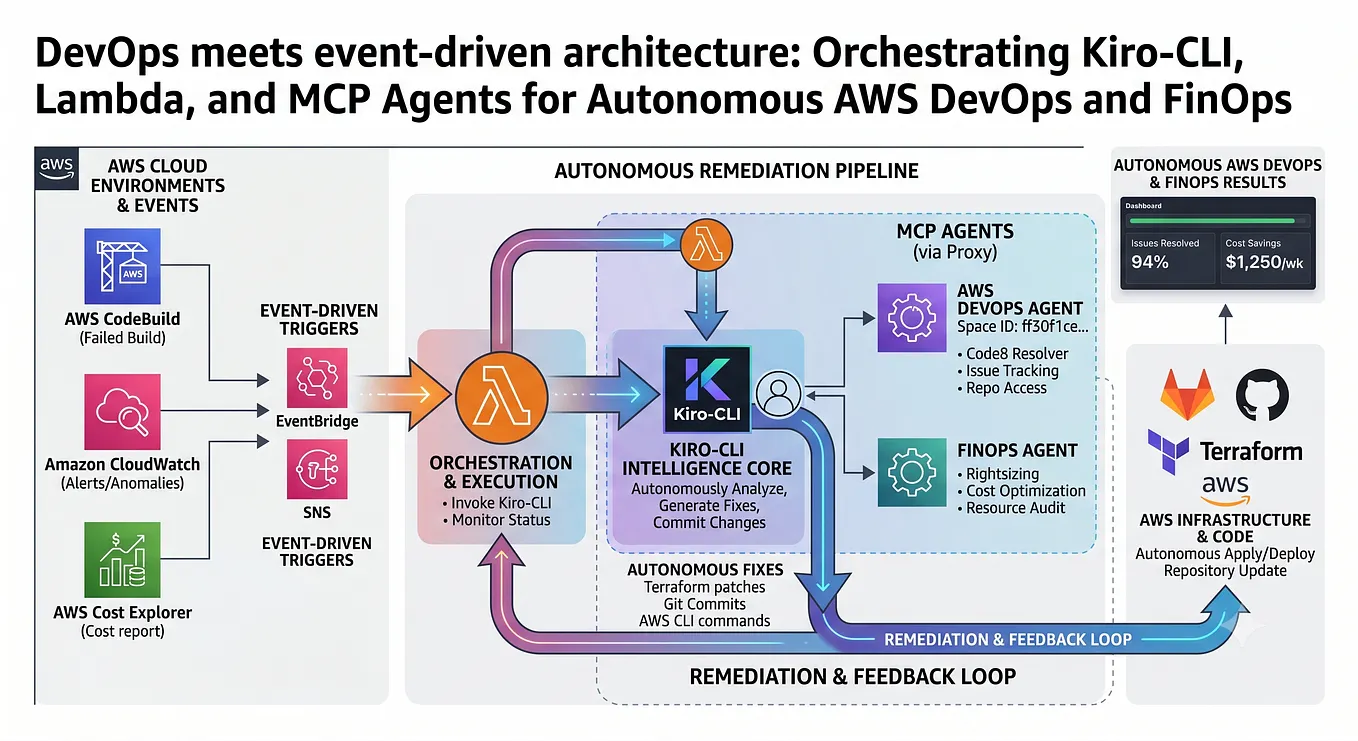
Getting Started with Kiro CLI: AI-Powered Development in Your Terminal

Kiro is an AI agent that works directly in your terminal — reading, writing, and running code so you can focus on designing systems and making decisions.
Starting a Chat Session
The simplest way to get started is to open an interactive chat session:
kiro-cli chatDescribe what you want to build, and Kiro handles the rest — reading your codebase, writing code, running commands, and verifying results.
Agents: Specialized AI for Every Task
Agents are JSON configuration files that define Kiro’s behavior for a specific context — whether that’s Rust development, AWS operations, or code review.
List available agents:
kiro-cli agent listCreate a new agent:
kiro-cli agent create --name my-agentSwitch agents during a chat session:
/agent rust-expertAgents are stored in two locations:
.kiro/agents/— project-specific agents~/.kiro/agents/— global agents available everywhere
Configuring an Agent
Agents are simple JSON files. Here’s a minimal example:
{
  "name": "my-agent",
  "description": "My dev agent",
  "prompt": "You are an expert developer...",
  "tools": ["fs_read", "fs_write", "execute_bash", "grep", "code"],
  "allowedTools": ["fs_read", "grep"],
  "resources": ["file://src/**/*", "file://README.md"]
}
Key fields explained:
- tools — the tools the agent is allowed to use
- allowedTools — tools auto-approved without a confirmation prompt
- resources — files automatically loaded into the agent’s context
- hooks — shell commands triggered on agent spawn, before/after tool use, etc.
- mcpServers — integrate external MCP tool servers for extended capabilities
Built-in Tools
Kiro comes with a powerful set of built-in tools:
Get Technology Update’s stories in your inbox
Join Medium for free to get updates from this writer.
ToolPurposefs_read / fs_writeRead and write filesexecute_bashRun shell commandsgrep / globSearch files and directoriescodeAST-based code intelligenceuse_awsAWS CLI operationsknowledgeSearch indexed knowledge bases
Slash Commands
Inside a chat session, slash commands give you quick control:
CommandWhat it does/agent <name>Switch to a different agent/agent createCreate a new agent with AI assistance/agent editEdit the current agent's config/helpList all available slash commands
Validating Your Agent Config
Before using a new agent, validate its configuration:
kiro-cli agent validate --path .kiro/agents/my-agent.jsonThis checks for valid JSON syntax and schema compliance, catching errors before they cause issues in a session.
A Real-World Example: AWS Operations Agent
{
  "name": "aws-ops",
  "description": "AWS operations and management",
  "tools": ["use_aws", "fs_read", "execute_bash"],
  "toolsSettings": {
    "use_aws": {
      "allowedServices": ["s3", "lambda", "ec2"],
      "autoAllowReadonly": true
    }
  }
}
Why Kiro?
- Works entirely in your terminal — no IDE required
- Agents are version-controllable JSON files — share them with your team
- Hooks let you automate workflows around every interaction
- MCP server support extends Kiro with any external tool
💡 Tip for publishing on Medium: Copy the content of this page and paste it into Medium’s editor. Code blocks, tables, and formatting will carry over cleanly.
Have a specific stack or workflow in mind? Create a custom agent and tailor Kiro exactly to your needs.