How Does a Computer See an Image?

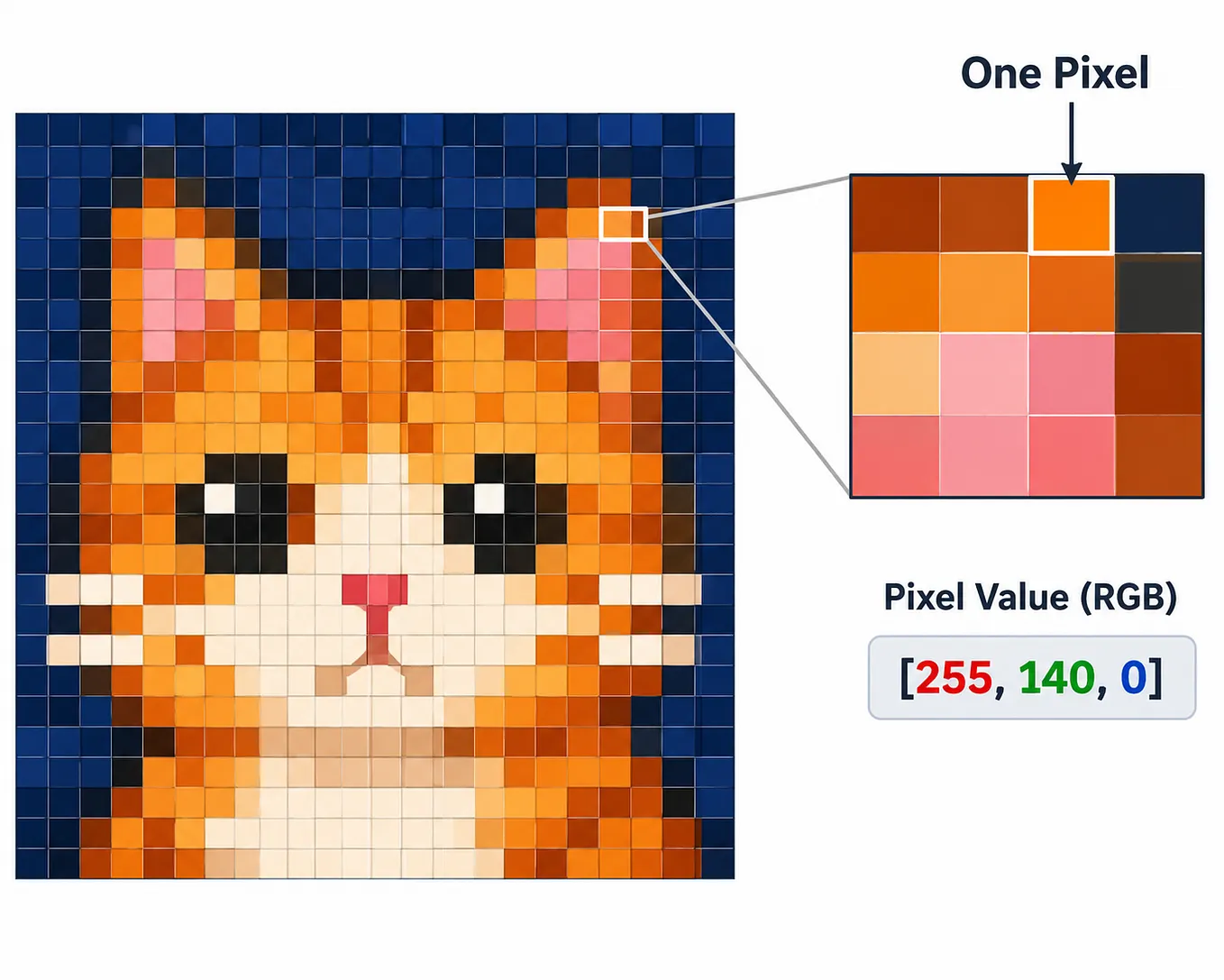
A computer doesn’t see an image the way humans do. Instead, it sees an image as a collection of numbers. For a computer, an image is basically a large table of numbers.
The smallest unit of an image is called a pixel. An image is made up of many small pixels placed next to each other. Each pixel contains a numerical value that represents its color or brightness.
For example, in a grayscale image, pixel values range from 0 (black) to 255 (white).
Let’s look at a 5×5 matrix representing a “+” symbol:
  0   0  255   0   0
  0   0  255   0   0
255 255  255 255 255
  0   0  255   0   0
  0   0  255   0   0
You see a “+” shape, but the computer only processes these numerical values. It doesn’t automatically understand that this is a plus sign.
What About Color Images?
Color images usually have three color channels: Red (R), Green (G), and Blue (B). Each channel has a value between 0 and 255.
For example:
- Pure red → (255, 0, 0)
- Yellow → (255, 255, 0)
- White → (255, 255, 255)
- Black → (0, 0, 0)
So, a 1920×1080 color image contains 1920 × 1080 × 3 numerical values (approximately 6.2 million values).
In programming, this numerical structure is commonly represented as an array or tensor.
Okay, But How Does a Computer Understand an Image?
The process can be explained in three main steps:
1. Detecting Edges and Features
Sudden changes in the values of neighboring pixels can indicate edges.
For example, in the sequence 10, 15, 250, 255, there is a significant change between 15 and 250. This change may represent an edge.
Get merve kayar’s stories in your inbox
Join Medium for free to get updates from this writer.
Image processing techniques use mathematical operations and filters to analyze pixel values and detect patterns such as edges and boundaries.
2. From Simple Features to Complex Patterns
Image processing algorithms can identify different visual features at different levels of complexity:
- Basic features: Lines, edges, and corners.
- More complex features: Shapes, textures, and object parts, such as wheels and ears.
- High-level features: Combinations of visual patterns that can help identify objects such as cats, cars, or faces.
3. Learning from Examples
We don’t need to manually write every rule that tells the computer what a cat looks like.
Instead, we train machine learning models using thousands of labeled images.
For example:
- This image is a cat.
- This image is a car.
During training, the model learns numerical patterns associated with each category. As a result, it can predict which category a new image belongs to.
What Happens If the Image Changes?
Imagine that a cat image becomes darker, slightly blurred, or rotated.
The pixel values will change, but we still recognize the image as a cat.
A computer vision model must learn to recognize the same object despite these changes.
Modern computer vision models use training techniques and different algorithms that help them become more robust to variations in images.

Creating a 5×5 Image Using Python and OpenCV
Library:
pip install numpy opencv-python# Import OpenCV for image processing and displaying images
import cv2
# Import NumPy to create and manipulate numerical arrays
import numpy as np
# Create a 5x5 grayscale image using a NumPy array
# Each number represents the brightness value of a pixel
# 0 represents black, and 255 represents white
image = np.array([
[0, 0, 255, 0, 0],
[0, 0, 255, 0, 0],
[255, 255, 255, 255, 255],
[0, 0, 255, 0, 0],
[0, 0, 255, 0, 0]
], dtype=np.uint8)
# Display the original 5x5 image
cv2.imshow("5x5 Image", image)
# Wait until the user presses a key
cv2.waitKey(0)
# Close all OpenCV windows
cv2.destroyAllWindows()
# Enlarge the image to make individual pixels easier to see
# INTER_NEAREST preserves the original pixel values
large_image = cv2.resize(
image,
(500, 500),
interpolation=cv2.INTER_NEAREST
)
# Display the enlarged image
cv2.imshow("Enlarged 5x5 Image", large_image)
# Wait until the user presses a key
cv2.waitKey(0)
# Close all OpenCV windows
cv2.destroyAllWindows()Expected image:

This simple experiment demonstrates how a computer represents a visual pattern using numerical values. Even a basic shape like a “+” sign can be created by arranging pixels in a specific numerical pattern.