The ultimate markdown cheat sheet for the AI era


Every piece of markdown worth knowing, from the everyday basics to tables, footnotes, math, and diagrams, with clear notes on what works where.
Markdown is the reason your AI chats come back looking like a mess of #, *, and -.
Every major AI tool now answers in it, which quietly turned a developer’s formatting trick into something everyone runs into daily.
It’s a way to format plain text with a few small symbols, and it powers far more than AI: note apps, documentation, GitHub, Reddit, Discord. Learn it once and it pays off everywhere.
What this guide is
The full reference, built to be learned front to back or dipped into later.
Worked examples for everything, quick tables you can scan, and honest notes on what works in every tool versus what only works in some.
Few things to know first
You only see markdown once a tool renders it. A raw .md file just shows the symbols. So if something looks wrong, it’s usually the tool, not your syntax.
Markdown is not one standard. The 2004 original was tiny. Most of what people use today is a later flavor, mainly GitHub Flavored Markdown. Some features are universal, some are not, and this guide flags which is which.
How to open a .md file? You need something that renders it. Markdific (built by me) opens raw .md files and exports to PDF or Word on Mac and Windows. Obsidian if you want a linked note library. Notion and Bear work fine once you copy and paste the text in.
Where to go
- Just the essentials? Part 1 covers most markdown you’ll ever meet.
- Formatting real documents? Add Part 2 for tables, task lists, and the fiddly bits.
- Docs, notes, or technical writing? Part 3 has math, diagrams, footnotes, HTML, and more.
- Something won’t render? Jump to the flavors table near the end. The answer is almost always that your tool doesn’t support that feature.
Part 1: the everyday basics
These work in essentially every markdown tool. Learn this part and you can read and write the large majority of markdown you’ll ever meet.
Headings
One or more # at the start of a line. One hash is the largest, each extra hash goes one level smaller, down to six.
# Heading 1
## Heading 2
### Heading 3
#### Heading 4
##### Heading 5
###### Heading 6
The space after the hash matters. #Heading usually won't render; # Heading will.
There’s an older alternative for the top two levels, using underlines:
There’s an older alternative for the top two levels, using underlines:
Heading 1
=========

Heading 2
---------
You’ll see it occasionally, but the # style is far more common and more flexible.
Paragraphs and line breaks
This catches almost everyone. A single line break does not start a new line the way you’d expect. Markdown treats it as a continuation of the same paragraph.
To get a new paragraph, leave a blank line between blocks:
First paragraph.

Second paragraph.
To force a line break inside the same paragraph, end the line with two trailing spaces, then press Enter. It’s invisible and slightly annoying, but it’s the most reliable method. Some tools also accept a trailing backslash for the same effect, though that one isn’t universal, so the two-space version is the safer habit.
- Blank line between blocks gives a new paragraph.
- Two trailing spaces (or a trailing backslash in some tools) gives a line break within a paragraph.
- A single Enter with no trailing spaces does nothing visible; the text runs on.
Bold, italic, and strikethrough
*italic* or _italic_

**bold** or __bold__

***bold and italic***

~~strikethrough~~
Asterisks and underscores both work for bold and italic; pick one style and stay consistent. One real gotcha: underscores don’t work in the middle of a word (un_believe_able stays literal), but asterisks do (un*believe*able italicizes the middle). If you're emphasizing part of a word, use asterisks.
Strikethrough (~~) is a GitHub Flavored Markdown extension, not original markdown, though it's very widely supported now.

Blockquotes
Start a line with >.
> This is a quote.Nest by stacking the symbol, and include other markdown inside:
> First level
>> Nested quote
>
> Back to first level, with **bold** inside.
Quotes can hold multiple paragraphs, lists, and even code blocks, as long as each line carries the >.

Lists
Bullets use a dash, asterisk, or plus, followed by a space. Numbered lists use a number and a dot.
- First
- Second
- Third

1. First
2. Second
3. Third

A useful quirk: in a numbered list, the actual numbers don’t matter. Write 1. on every line and it still renders 1, 2, 3. That makes reordering painless.
- Use
-,*, or+for bullets; all three work, so pick one. - Numbers auto-count, so you don’t have to renumber by hand.
- Keep the style consistent within a single list to avoid odd rendering.
Links
Square brackets for the visible text, round brackets for the address.
[Visit the site](https://example.com)
Add a hover title:
[Visit the site](https://example.com "Hover text")Bare URLs in angle brackets become clickable:
<https://example.com>There’s also a reference style, handy when the same link is used repeatedly or you want to keep prose clean. Define the link once, refer to it by label:
See the [docs][1] and the [guide][1] for more.

[1]: https://example.com
Images
Same as a link, with an exclamation mark in front. The bracketed text is the alt text, which shows if the image fails to load and is read aloud by screen readers, so it’s worth filling in.

Markdown itself has no syntax for resizing images. If you need that, you drop to HTML (covered in Part 3).

Inline code and code blocks
For a snippet or filename inside a sentence, wrap it in single backticks. For a whole block, use three backticks on their own lines above and below.
Use `inline code` for short bits.

```
a whole
block of text
```
Add a language name after the opening backticks for syntax highlighting in tools that support it:
```python
def hello():
    print("hi")
```
Common language labels include python, javascript, bash, json, html, css, sql, and yaml. If you don't know or don't care, leave it blank; the block still renders, just without colored highlighting.
If your code itself contains three backticks, fence it with four backticks on the outside instead. The rule is simply that the outer fence must be longer than anything inside it.
Horizontal rule
Three or more dashes, asterisks, or underscores on their own line draw a divider.
---
Leave a blank line above it. Three dashes directly under a line of text will instead be read as a heading underline, not a divider, which is a common surprise.
Part 2: the useful markdown middle ground
Common and widely supported, but a step beyond the basics. Most of this comes from GitHub Flavored Markdown.
Tables
Columns separated by pipes, with a row of dashes under the header to mark it as a table.
| Name  | Role      |
| ----- | --------- |
| Ada   | Engineer  |
| Grace | Scientist |
You don’t have to align the pipes neatly in the raw text; it renders the same whether tidy or ragged.
Get Yugene’s stories in your inbox
Join Medium for free to get updates from this writer.
Control alignment with colons in the dashes row. Left colon for left, both sides for center, right colon for right:
| Item      | Qty | Price |
| :-------- | :-: | ----: |
| Coffee    |  2  |  4.50 |
| Croissant |  1  |  3.20 |
Cells can hold inline markdown (bold, links, inline code) but not block elements, so tables stay best for genuinely tabular data.
- Tables are a GFM feature, not universal, though very widely supported.
- To put a literal pipe inside a cell, escape it as
\|. - There’s no built-in way to merge cells or span rows; that needs HTML.
Task lists
A bullet with [ ] for unchecked or [x] for checked.
- [x] Write the draft
- [ ] Edit it
- [ ] Publish
In tools that support them (GitHub and many editors) these render as real checkboxes. In tools that don’t, they show as literal brackets. GFM feature.
Escaping characters
When you want a literal symbol that markdown would otherwise interpret, put a backslash in front.
\*not italic\*
\# not a heading
1\. not a numbered list
Characters you can escape this way: backslash, backtick, asterisk, underscore, curly braces, square brackets, parentheses, hash, plus, minus, dot, and exclamation mark.
Nested lists
Indent to nest. Two spaces usually works, though some parsers want four. If nesting renders flat, indentation is almost always the cause. You can mix ordered and unordered:
1. Preheat the oven
2. Make the filling
   - Chop the onions
   - Brown the meat
3. Assemble and bake
You can also put paragraphs, code blocks, or quotes inside a list item by indenting them to line up with the item’s text.
Combining elements
Markdown stacks, so you can bold inside a bullet, link inside a quote, or put code in a heading:
- **Deadline:** Friday
- Read the [full guide](https://example.com) first
- Run `npm install` before anything else

> Reminder: **do not** push to `main` on a Friday.
Part 3: the advanced and dialect-specific stuff
Here support gets patchy. Everything below works somewhere, but not everywhere. Check your specific tool before relying on it.
Footnotes
Mark a spot with [^1], then define the note elsewhere, usually at the bottom.
Here's a claim that needs a source.[^1]

[^1]: And here is the source.
The label can be a number or a word ([^note]), and the rendered order follows where the notes are referenced, not where they're defined. Supported by GitHub, pandoc, and many note apps, but not universal.
Definition lists
A term on one line, its definition on the next, indented and starting with a colon.
**Markdown**
: A lightweight markup language for formatting plain text.

**HTML**
: The standard markup language for web pages.
Not part of standard or GFM markdown. Supported by pandoc, PHP Markdown Extra, and some others.
Heading anchors and internal links
Many renderers automatically give each heading an ID derived from its text, so you can link to a section in the same document:
See the [tables section](#tables).
The ID is usually the heading text lowercased with spaces turned to hyphens, but the exact rule varies by tool. Some processors let you set a custom ID with an attribute, though that syntax is not standardized:
## Setup {#install}Abbreviations
Some processors (notably pandoc and PHP Markdown Extra) let you define an abbreviation that gets a tooltip wherever the term appears:
*[HTML]: HyperText Markup Language

The HTML spec is long.
Niche and not widely supported.
Math with LaTeX
Inline math goes between single dollar signs, block (centered, on its own line) math between double dollar signs. The syntax inside is LaTeX.

More examples of common notation:
Fractions:      $\frac{a}{b}$
Powers:         $x^2$    Subscripts: $x_1$
Roots:          $\sqrt{2}$   and   $\sqrt[3]{x}$
Greek letters:  $\alpha, \beta, \gamma, \pi, \theta$
Sums:           $\sum_{i=1}^{n} i$
Symbols:        $\leq \geq \neq \approx \infty \pm$
This uses LaTeX or KaTeX syntax and only renders in tools that support math: GitHub, GitLab, Jupyter notebooks, many note apps (including Obsidian and Notion), and some markdown editors. Everywhere else it shows as raw text with dollar signs.
- Some tools use
\(and\)for inline and\[and\]for block instead of dollar signs. If dollar signs don't work, try those. - A stray dollar sign in normal prose can accidentally start math in some tools. Escape it as
\$when you mean a currency symbol.
Diagrams with Mermaid
Mermaid lets you write a diagram as plain text inside a fenced code block labeled mermaid, and supporting tools render it as an actual picture. It's become the standard for "diagrams as code," and since it's just text, AI tools produce it readily.
A flowchart:
```mermaid
flowchart TD
    A[Start] --> B{Decision}
    B -->|Yes| C[Do the thing]
    B -->|No| D[Stop]
```
The basics of flowchart syntax: flowchart TD sets direction (TD is top-down, LR is left-right). Node shapes come from the brackets: [] is a rectangle, {} a diamond (decision), () a rounded box, (()) a circle. Arrows are -->, and -->|label| puts text on the arrow.
A sequence diagram, for showing how systems talk to each other:
```mermaid
sequenceDiagram
    User->>API: POST /login
    API-->>User: 200 OK + token
```
A pie chart:
```mermaid
pie title How I spend my day
    "Sleep" : 8
    "Work" : 9
    "Everything else" : 7
```
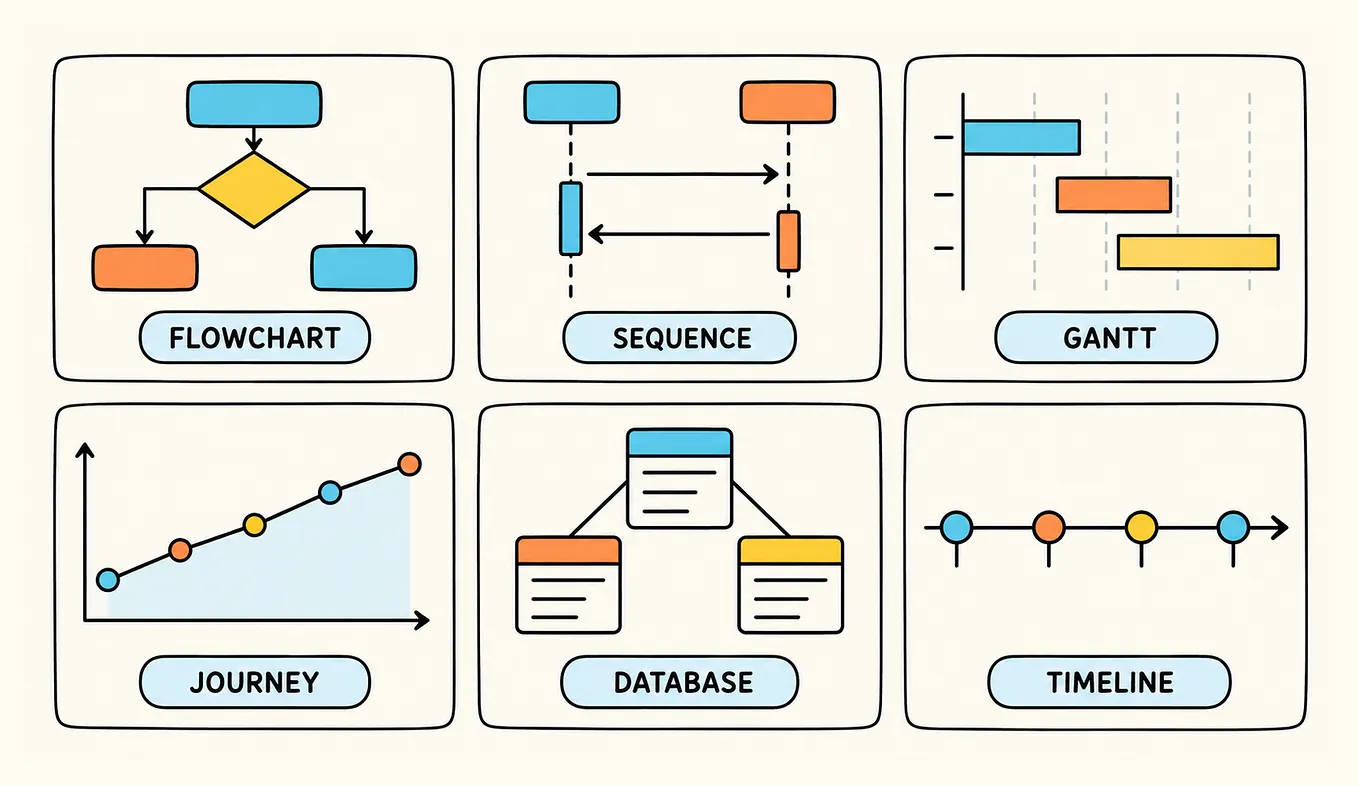
Mermaid supports a wide range of types, more than twenty in total. The ones you’ll actually meet:

Support: GitHub has rendered Mermaid natively since 2022, and GitLab, Notion, Obsidian, and Typora do too, along with many static-site tools and dedicated editors. But most plain markdown editors just show the raw code, so check before relying on it. When it doesn’t render, you can paste the code into a live Mermaid editor to get an image.
HTML inside markdown
Most processors let you drop in raw HTML when markdown can’t do what you need:
<div align="center">
  This paragraph is centered.
</div>

Text with <sub>subscript</sub> and <sup>superscript</sup>.

<img src="logo.png" width="200">
Useful for things markdown has no syntax for: centering, subscript, superscript, image sizing, or specific layout. Note that some platforms, including many comment systems, strip HTML for security, so it isn’t guaranteed to render.
Collapsible sections
Using HTML’s details element, which works anywhere raw HTML is allowed (notably GitHub):
<details>
  <summary>Click to expand</summary>

  Hidden content goes here, and it can include markdown.

</details>
Front matter
A block of metadata at the very top of a file, fenced by triple dashes, usually written in YAML. Static site generators and many note apps read it; plain renderers ignore or display it.
---
title: My Post
date: 2026-01-01
tags: [markdown, writing]
---
The article starts here.

Emoji
Two ways emoji show up in markdown. You can paste the actual emoji character directly, which works everywhere since it’s just text. Or you can use a shortcode:
Direct:    Nice work 🎉
Shortcode: Nice work 🎉
Shortcodes (:tada:, :rocket:, :warning:) are a platform feature on GitHub, Slack, Discord, and others, not part of markdown itself. Where they aren't supported, they stay as literal text, so pasting the real emoji is the safe choice.

Other bits worth knowing
A handful of smaller features round out the picture. Support varies, so treat these as tool-dependent.
- Highlight / mark. Some tools (Obsidian, others) support
==highlighted==for a highlighter effect. Not standard. - Subscript and superscript. A few tools use
~sub~and^super^, but most rely on HTML instead:<sub>2</sub>and<sup>2</sup>. - Keyboard keys. There’s no markdown syntax; use HTML
<kbd>Ctrl</kbd>where supported, which styles text to look like a key. - Comments. Markdown has no official comment syntax. The common workaround is an HTML comment, which most renderers hide:
<!-- this won't show -->. - Automatic linking. In GFM, a bare URL or email in the text becomes a clickable link automatically, no brackets needed.
- Escaping inside links. If a URL contains spaces or parentheses, wrap it or percent-encode it (a space becomes
%20), otherwise the link can break. - Trailing whitespace. Beyond the two-space line break, trailing spaces are usually ignored, so they’re a common invisible source of confusion.
The flavors, and what works where
Here’s the thing that saves the most frustration: markdown comes in flavors, and support for anything beyond the basics depends on the tool. This table pulls it together.

A few flavor names you’ll run into:
- Original markdown (sometimes “classic” or “vanilla”): the 2004 baseline. Small and universal.
- CommonMark: a strict, precisely specified version of the original, created to end ambiguity between tools. Widely used as a base.
- GitHub Flavored Markdown (GFM): CommonMark plus tables, task lists, strikethrough, and autolinks. The de facto standard most people actually encounter.
- MDX: markdown that lets you embed interactive components; used in web development.
- Pandoc markdown: a very feature-rich flavor used for document conversion, with footnotes, definition lists, and much more.
The single habit that prevents almost every “why isn’t this working” moment: test the specific feature in the specific tool you’re using, rather than assuming it’s universal.
Common mistakes, and how to avoid them
- Text runs together. You pressed Enter once. Leave a blank line for a new paragraph, or end the line with two spaces for a line break.
- Nested list looks flat. Your indentation is off. Try four spaces instead of two.
- A heading appeared where you wanted a divider. Three dashes right under text becomes a heading underline. Put a blank line above your
---. - A symbol keeps formatting when you wanted it literal. Escape it with a backslash:
\*. - Your table, math, or diagram shows as raw text. Your tool probably doesn’t support that feature. Check the flavors table above.
- HTML you added vanished. Some platforms strip HTML. There’s often no workaround beyond using a tool that allows it.
Working with AI-generated markdown
Since so much markdown now arrives from AI tools, a few practical notes:
- What AI tends to emit. Most models lean on headings, bold, bullet and numbered lists, tables, and fenced code blocks. Some also produce LaTeX math or Mermaid diagrams when the topic calls for it. That’s exactly the mix this guide covers.
- Ask for the format you want. You can steer the output. “Give me the answer as a markdown table,” “use bullet points,” or “return only the raw markdown, no commentary” all work, and save cleanup later.
- Watch for over-formatting. Models sometimes bold half a paragraph or nest lists three levels deep. It’s easy to trim once you can read the rendered version.
- Copying the raw source. In most chat interfaces there’s a copy button that gives you the underlying markdown, not the rendered view. That’s the version you want if you’re moving it into an editor or a file.
Pasting markdown into other apps
Markdown doesn’t paste cleanly everywhere, which surprises people:
- Google Docs and Microsoft Word don’t natively understand raw markdown; pasting shows the literal symbols. Word and Docs have improved markdown handling in places, but it’s inconsistent, so a dedicated markdown tool that exports to
.docxis often the cleaner path. - Notion converts many markdown shortcuts as you type, but pasting a whole raw file can be hit or miss.
- Email clients generally don’t render markdown at all.
- The reliable route for sharing formatted output is to render the markdown in a tool that supports it, then export to PDF, Word, or HTML, or copy the rendered rich text.
Reading and editing the files
Knowing the syntax is only half of it. The other half is having a tool that renders a .md file cleanly, so you can see the formatting as it’s meant to look and watch it update as you edit. Which tool depends on the job:
- Markdific if you mostly get raw .md files from AI tools and want to open, edit, and export them to PDF or Word quickly, on Mac or Windows. Full disclosure: I build this one.
- Obsidian if you want to build a linked web of notes and live inside it.
- MarkText if you want a free, open-source editor that renders as you type.
- Notion and Bear if your notes already live there. Both handle markdown well once you copy and paste the text in, though neither is built for opening a raw .md file directly.
None will teach you markdown, but any will make the file readable, and the syntax sinks in fast once you can watch it render.
The short version
If this feels like a lot, it is, but you’ll lean on a small core almost all the time:
- Headings with
# - Bold and italic with
*asterisks* - Lists with
-or1. - Links with
[text](url) - Code with backticks
Learn those five and you can read nearly anything an AI tool or a colleague throws at you. The rest of this guide is here for when a document calls for tables, footnotes, math, or diagrams, and remember to check that your tool supports the fancier features before relying on them.
Keep this open the next time a .md file lands in your lap, and it’ll read like formatting instead of noise.