

 README

gim - Grid Based Image Merge Library
gim is a image merging library that can accept image paths as input, read the image contents, add background color, draw layers on top of each other, merge them into a grid with the desired size.

Table of Contents
Overview
gim provides an easy and extensible way to merge images into a flexible grid system.
The main purpose of the library is to help creating image collages programmatically.
Installation
go get -u github.com/766b/go-image-merge
Getting Started
Import the library and give the image paths and grid size as the minimum required arguments.
Basic usage:
import gim "github.com/766b/go-image-merge"

// accepts *Grid instances, grid unit count x, grid unit count y
// returns an *image.RGBA object
grids := []*gim.Grid{
	{ImageFilePath: "file.jpg"},
	{ImageFilePath: "file.png"},
}
rgba, err := gim.New(grids, 2, 1).Merge()

// save the output to jpg or png
file, err := os.Create("file/path.jpg|png")
err = jpeg.Encode(file, rgba, &jpeg.Options{Quality: 80})
err = png.Encode(file, rgba)
See Examples for available options and advanced usage.
Examples
Grid Unit Count - Vertical & Horizontal
grids := []*gim.Grid{
    {ImageFilePath: "./cmd/gim/input/kitten.jpg"},
    {ImageFilePath: "./cmd/gim/input/kitten.jpg"},
    {ImageFilePath: "./cmd/gim/input/kitten.jpg"},
    {ImageFilePath: "./cmd/gim/input/kitten.jpg"},
}
rgba, err := gim.New(grids, 2, 2).Merge()
Output:

Grid Background Color
grids := []*gim.Grid{
    {
        ImageFilePath: "./cmd/gim/input/ginger.png",
        BackgroundColor: color.White,
    },
    {
        ImageFilePath: "./cmd/gim/input/ginger.png",
        BackgroundColor: color.RGBA{R: 0x8b, G: 0xd0, B: 0xc6},
    },
}
rgba, err := gim.New(grids, 2, 1).Merge()
Output:

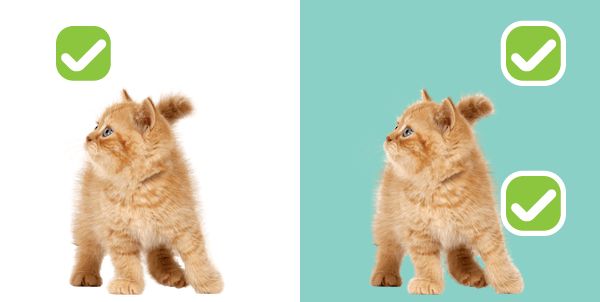
Grid Layers - Draw Grids on top of Grids
grids := []*gim.Grid{
    {
        ImageFilePath: "./cmd/gim/input/ginger.png",
        BackgroundColor: color.White,
        // these grids will be drawn on top of the first grid
        Grids: []*gim.Grid{
            {
            	ImageFilePath: "./cmd/gim/input/tick.png",
            	OffsetX: 50, OffsetY: 20,
            },
        },
    },
    {
        ImageFilePath: "./cmd/gim/input/ginger.png",
        BackgroundColor: color.RGBA{R: 0x8b, G: 0xd0, B: 0xc6},
        // these grids will be drawn on top of the second grid
        Grids: []*gim.Grid{
            {
            	ImageFilePath: "./cmd/gim/input/tick.png",
            	OffsetX: 200, OffsetY: 170,
            },
            {
            	ImageFilePath: "./cmd/gim/input/tick.png",
            	OffsetX: 200, OffsetY: 20,
            },
        },
    },
}
rgba, err := gim.New(grids, 2, 1).Merge()
Output:
Filters
Available Filters
- Black & White: Converts an image to grayscale.
- Sepia: Applies a sepia filter to an image.
- Vignette: Applies a vignette filter to an image.
Applying Filters
To apply filters, include them in the Filters slice of the Grid struct. Each Grid can have multiple filters applied, which will be processed in the order they are added.
Example: Black & White Filter
grids := []*gim.Grid{
    {
        ImageFilePath:   "./cmd/gim/input/ginger2.png",
        Filters: []imagefilter.FilterType{
            imagefilter.BlackAndWhite,
        },
    },
    {
        ImageFilePath:   "./cmd/gim/input/ginger2.png",
    },
}
Output:

Functional Options
OptBaseDir
// you can omit the full path if you set a base dir
grids := []*gim.Grid{
    {ImageFilePath: "kitten.jpg"},
    {ImageFilePath: "kitten.jpg"},
}
rgba, err := gim.New(
	grids, 1, 2,
	gim.OptBaseDir("./cmd/gim/input"),
).Merge()
OptGridSize
// you can resize the grids in pixels
grids := []*gim.Grid{
    {ImageFilePath: "kitten.jpg"},
    {ImageFilePath: "kitten.jpg"},
}
rgba, err := gim.New(
	grids, 2, 1,
	gim.OptBaseDir("./cmd/gim"),
	gim.OptGridSize(200,150),
).Merge()
Output:

TODO
- Add colored background support
- Add resize support (stretch, fit etc.)
- Add filters
 Documentation

Index 
Constants 
This section is empty.
Variables 
This section is empty.
Functions 
func OptBaseDir 
func OptBaseDir(dir string) func(*MergeImage)
OptBaseDir is an functional option to set the BaseDir field
func OptGridSize 
func OptGridSize(sizeX, sizeY int) func(*MergeImage)
OptGridSize is an functional option to set the GridSize X & Y
func OptGridSizeFromNthImageSize 
func OptGridSizeFromNthImageSize(n int) func(*MergeImage)
OptGridSizeFromNthImageSize is an functional option to set the GridSize from the nth image
Types 
type Grid 
type Grid struct {
	Image           image.Image
	ImageFilePath   string
	BackgroundColor color.Color
	OffsetX         int
	OffsetY         int
	Grids           []*Grid
	Filters         []imagefilter.FilterType
}
Grid holds the data for each grid
type MergeImage 
type MergeImage struct {
	Grids           []*Grid
	ImageCountDX    int
	ImageCountDY    int
	BaseDir         string
	FixedGridSizeX  int
	FixedGridSizeY  int
	GridSizeMode    gridSizeMode
	GridSizeFromNth int
}
MergeImage is the struct that is responsible for merging the given images
func New 
func New(grids []*Grid, imageCountDX, imageCountDY int, opts ...func(*MergeImage)) *MergeImage
New returns a new *MergeImage instance
func (*MergeImage) Merge 
func (m *MergeImage) Merge() (*image.RGBA, error)
Merge reads the contents of the given file paths, merges them according to given configuration
func (*MergeImage) ReadImageFile 
func (m *MergeImage) ReadImageFile(path string) (image.Image, error)
 Source Files
 Directories