




Salesforce Dynamic Forms have changed the way admins design Lightning Record Pages, giving you more control over what users see and when they see it. Instead of relying solely on the traditional Record Detail component and Page Layouts, Dynamic Forms allows you to place individual fields and field sections directly onto the page, creating a more flexible and personalized user experience.
In this guide, we’ll explore what Salesforce Dynamic Forms are, how they work, and why they are useful for Salesforce Admins. We’ll cover supported objects, visibility rules, mobile support, migration considerations, and best practices to help you decide when Dynamic Forms is the right solution for your Salesforce org.
What Are Salesforce Dynamic Forms?
The goal of Dynamic Forms is simple: create more intuitive, user-focused record pages that show users the right information at the right time.
Over time, Salesforce record pages can become crowded with fields. The information may be important, but not every user needs to see every field all the time. As organizations grow and processes become more complex, traditional Page Layouts can become difficult to manage, often resulting in multiple Page Layouts, Record Types, and Profile assignments.
Historically, creating different experiences for different users meant relying heavily on Page Layout configuration. While this approach works, it can become time-consuming to maintain as your Salesforce org grows.
Dynamic Forms changes the way admins design Lightning Record Pages by allowing fields and sections to be managed directly within Lightning App Builder. Instead of relying solely on the traditional Record Detail component, admins can create more flexible and personalized experiences.
With Dynamic Forms, you can:
- Place individual fields and field sections anywhere on the Lightning Record Page without being limited by the traditional Record Detail component.
- Use visibility rules to show or hide fields and sections based on criteria such as record values, user details, or other conditions.
- Create more personalized experiences for different teams and users without needing as many variations of Page Layouts.
- Improve usability by reducing clutter and helping users focus on the information that is relevant to them.
- Optimize page performance by controlling how information is displayed and organizing content more effectively.
Salesforce Dynamic Forms Visibility Rules
One of the biggest benefits of Dynamic Forms is the ability to control when fields and entire field sections appear on a Lightning Record Page.
With Dynamic Forms visibility rules, you can make individual fields or complete sections conditionally visible based on criteria such as record values, user details, or other conditions. This allows you to create a more streamlined experience where users see the information they need, when they need it.
For example, you could create visibility rules that:
- Show an Opportunity Approval Details section only when an Opportunity requires approval, including approval status, approver comments, and approval dates.
- Display a Renewal Information section only for Subscription or Renewal Opportunities, keeping those fields hidden for new business deals.
- Show a Customer Success Information section once an Account becomes a customer, including onboarding details, success plans, or support information.
- Display a Partner Management section only when an Account is marked as a Partner, with fields for partner tier, enablement status, and partner contacts.
- Show an Escalation Details section on Cases only when a case has been escalated, including escalation reason, owner, and resolution information.
- Display a Compliance or Risk Assessment section only for records that meet certain criteria, such as a high-value Opportunity or a regulated customer.
Visibility rules are particularly useful for complex records that support multiple processes or teams. Instead of displaying every possible section to every user, you can create a focused experience that adapts as a record changes.
Which Salesforce Objects Support Dynamic Forms?
Dynamic Forms are only available for objects that support Lightning Web Component (LWC) record pages. For supported objects, you can place individual fields and field sections directly onto the Lightning Record Page, giving you much greater control over the user experience.
If an object doesn’t support Dynamic Forms, Salesforce continues to use the traditional Page Layout to determine which fields and sections are displayed. This means you won’t be able to take advantage of Dynamic Forms features such as conditional field visibility or more flexible page layouts for those objects.
Examples of objects that are not LWC-enabled include Campaigns, Products, Events, and Tasks.
Mobile Support for Dynamic Forms
Dynamic Forms aren’t limited to desktop users – they’re fully supported in the Salesforce mobile app on both iOS and Android. This allows mobile users to benefit from the same customized record pages, conditional field visibility, and streamlined layouts as desktop users.
To enable Dynamic Forms on mobile, navigate to Setup → Salesforce Mobile App and enable Dynamic Forms and Dynamic Highlights Panel on Mobile. New Dynamic Forms-enabled record pages created after this point will automatically support mobile devices.
If you’ve already implemented Dynamic Forms, there’s one additional step. Remove the Record Detail – Mobile component from your existing Lightning Record Pages. If this component remains on the page, mobile users will continue to see the traditional record layout instead of your Dynamic Forms configuration.
Top Tip: After enabling Dynamic Forms on mobile, verify that your Lightning Record Page is activated for the Phone form factor to ensure mobile users see the correct experience!
Performance Tips: Getting the Most From Dynamic Forms
Dynamic Forms give admins more flexibility when designing Lightning Record Pages, but a well-designed page is still essential for maintaining good performance.
Use Tabs and Accordions
Tabs and the Accordion component only load their contents when a user selects them. Instead of placing lots of Field Section components directly onto the main record page, consider grouping related fields into Tabs or an Accordion. This reduces the amount of information Salesforce needs to load upfront and creates a smoother experience for users.
Keep Visibility Rules Simple
Dynamic Forms makes it easy to control when fields appear, but avoid creating overly complex visibility rules. Rules with multiple conditions can become difficult to maintain and may increase the time Salesforce takes to determine what users should see.
Remove Unnecessary Components
Every component added to a Lightning Record Page contributes to the overall page load. Regularly review your pages and remove fields, related lists, or components that users no longer need.
Consider Multiple Record Pages
Rather than creating one large record page with dozens of visibility rules, consider creating separate Lightning Record Pages for different user groups. A simpler page that displays only the information users need is often easier to manage and can provide a better user experience.
Use the Lightning App Builder Analyze Tool
The Analyze button in Lightning App Builder can help identify potential performance issues with your record pages. Use this tool when building new pages or reviewing existing ones to find opportunities for optimization.
Dynamic Forms vs. Page Layouts: When to Use Which?
If you have been working with Salesforce for a while, you are probably familiar with Page Layouts. They have been the foundation of Salesforce record customization for years, and they are not going away.
Dynamic Forms do not replace Page Layouts. Instead, it gives admins more flexibility when designing Lightning Record Pages by allowing you to place individual fields and field sections exactly where you need them, and control when they appear using visibility rules.
So, when should you use Dynamic Forms and when should you stick with Page Layouts? The answer depends on what you are trying to achieve.
For simple record pages, Page Layouts may still be the easiest option. However, if you are building more complex experiences, have different users who need to see different information, or want more control over your Lightning Record Pages, Dynamic Forms can help you create a cleaner and more tailored experience.
In many cases, you will use both together. Page Layouts continue to handle the underlying record structure and features that depend on them, while Dynamic Forms gives you more control over what users see when viewing records in Lightning Experience.
| Use Dynamic Forms when you want to… | Use Page Layouts when you need to… |
|---|---|
| Create a more customized Lightning Record Page experience. | Configure objects that do not support Dynamic Forms. |
| Show or hide fields based on record values, users, or other criteria. | Manage related lists, buttons, actions, and other page layout features. |
| Place individual fields and field sections wherever they make the most sense. | Maintain a simple and consistent record page experience. |
| Reduce clutter by only showing users the information they need. | Support Salesforce features and experiences that still rely on Page Layouts. |
| Organize information using Tabs or Accordions. | Manage fields for mobile layouts and other non-Dynamic Forms experiences. |
| Create different experiences for different teams or user groups. | Continue using a familiar Salesforce customization approach. |
Before moving everything to Dynamic Forms, take some time to review your existing record pages and understand what your users actually need. Sometimes a simple Page Layout is the right solution. Other times, Dynamic Forms can make a big difference by creating a more focused and user-friendly experience.
How to Migrate a Record Page to Dynamic Forms
For supported custom objects and standard objects, you can migrate an existing Lightning Record Page to use Dynamic Forms.
Open the Lightning Record Page you want to update in Lightning App Builder, then select the Record Detail or Highlights Panel component. Click Upgrade Now to start the migration process.

Salesforce will convert the existing page layout fields into individual fields and field sections, allowing you to take advantage of Dynamic Forms features such as conditional visibility and more flexible page customization.
Top Tip: During migration, Salesforce removes the Record Detail component from the Lightning Record Page and replaces it with individual fields and field sections. These components can then be configured, reordered, and placed wherever you need them, giving you much more control over the user experience.
Migrating to Dynamic Forms does not remove or replace your existing page layout. The page layout continues to control areas of Salesforce that still rely on it, including related lists, mobile layouts, and other experiences where Dynamic Forms is not supported.
How To Set Up Salesforce Dynamic Forms
Getting started with Dynamic Forms is easy! Let’s step through how to set up Dynamic Forms.
1. Create or Migrate a Page
For any custom object or selected standard objects, open the Lightning page you wish to upgrade, select the “Record Detail” or “Highlights Panel” component, and choose “Upgrade Now”, as shown in the image above.
You can also create a brand new page by going to your object, selecting “Lightning Record Pages”, then choosing “New”.
Once you’ve migrated or created a new Lightning record page, you will see the option to add a “Field Section” component, which will then enable you to add fields directly to the Lightning record page.
In this example, I have removed the traditional “Details” tab and component, instead creating a custom tab called “Candidate Information”. I then dragged a “Field Section” component onto my tab.
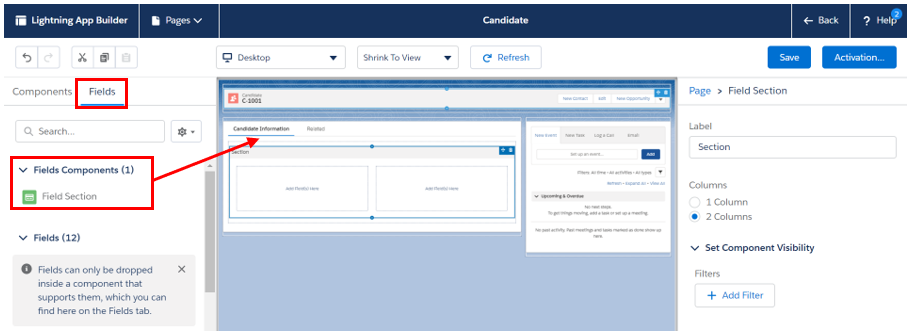
Note: You need to add a Fields Component before you are able to add fields!
2. Add Field Components and Fields
Once you’ve added a “Field Section” component to your page, you can start to add individual fields. A “Field Section” can be added in many places, not just in tabs, so go wild!

First, let’s add some fields that should always be visible to anyone who views the record:
- Don’t forget to name each field section!
- With a field selected, you can choose the UI behavior such as “Read Only” or “Required”.

3. Make Fields and Components Conditionally Visible
We can make both fields and entire field components conditionally visible.
Below, I’ve added a new “Fields Section” component titled “Confidential Information”, and made it visible only to users with the Profile name “HR”:

I’ve also made the field “Distance Willing to Travel” conditionally appear only if “Willing to Travel” equals TRUE:

This is a real game changer. In edit mode, our conditional field will appear once “Willing to Travel” is checked, without the user having to save or refresh the page.


Top Tip: Something worth noting is that Field visibility and Field Section visibility behave differently. Fields are dynamic as they are evaluated live (as a user makes changes). This means that a field may appear/disappear while a user is editing a record. In contrast, Field Sections are only evaluated on Save, so a new section won’t appear/disappear until the user saves the record.
4. Enable Dynamic Forms on Mobile
To enable Dynamic Forms on mobile, navigate to Setup → Salesforce Mobile App and enable Dynamic Forms and Dynamic Highlights Panel on Mobile.
Once enabled, any new Dynamic Forms-enabled record pages will automatically support mobile devices. However, if you already have existing Dynamic Forms pages, you will need to update them:
- Open the Lightning Record Page in Lightning App Builder.
- Remove the Record Detail – Mobile component if it is present.
- Save the page and confirm that it is activated for the Phone form factor if required.
Removing the Record Detail – Mobile component is an important step. If it remains on the page, mobile users will continue to see the fields from that component rather than the customized fields and sections you configured with Dynamic Forms.
Salesforce Dynamic Forms Limitations and Known Issues
Dynamic Forms gives Salesforce Admins much more flexibility when designing Lightning Record Pages, but it is not a complete replacement for Page Layouts in every scenario.
Before migrating existing pages, it is important to understand where Dynamic Forms works well, where Salesforce still relies on Page Layouts, and what limitations you may encounter.
Not All Objects Support Dynamic Forms
The biggest limitation with Dynamic Forms is object support. Dynamic Forms only works with objects that support Lightning Web Component (LWC) record pages.
If an object does not support Dynamic Forms, Salesforce will continue to use the Page Layout to control fields and sections. This applies to some standard objects that either have fixed layouts or have not yet been migrated to the required Lightning architecture.
Large Record Pages May Need Extra Planning
Dynamic Forms gives you more control over page design, but there are still limits to consider.
Field Sections can contain a maximum of 100 fields per column, and sections count towards the overall component limits on a Lightning Record Page. If you are migrating a large, complex record page with hundreds of fields, you may need to review and simplify the design rather than simply recreating the existing Page Layout.
Migration Is Not a Perfect Copy
The Dynamic Forms migration tool can save time, but it does not create an exact replica of your existing Page Layout.
It migrates fields, field sections, and some layout settings, but other elements, such as custom links and certain Page Layout configuration options, may not be included. Always review a migrated page before making it available to users.
Some Salesforce Experiences Still Use Page Layouts
Even when Dynamic Forms is enabled, some Salesforce experiences continue to rely on Page Layouts.
This includes certain create, clone, lookup, list view editing, and related record actions. For example, some record creation experiences may still display fields based on the underlying Page Layout rather than your Dynamic Forms configuration.
Known Issues to Be Aware Of
Salesforce continues to improve Dynamic Forms, but there are some known issues and behaviours to keep in mind:
- Fields that are only required for Person Accounts or Business Accounts may still appear in the Universally Required Fields section when configuring Dynamic Forms.
- Some visibility rules may not evaluate as expected in specific scenarios, particularly when they depend on fields from parent records.
- When creating records from a lookup field, Dynamic Forms fields are only displayed if the object supports LWC record pages. Objects that are not LWC-enabled continue to use Page Layout configuration.
- Cloning records can produce unexpected results when visibility rules are involved, as field values may be copied differently depending on user access.
Check Salesforce Documentation Before Migrating
Dynamic Forms continues to evolve, with Salesforce regularly adding support for new objects and addressing known issues.
For larger implementations, review the latest Salesforce documentation before migrating a large number of record pages. This can help you identify potential limitations early and avoid unnecessary rework.
Resources
- Trailhead: Be An Innovator With Dynamic Pages Trailmix
- Break Up Your Record Details with Dynamic Forms
- Dynamic Forms, Actions and Interactions Group
- Dynamic Forms Tips and Considerations
- Dynamic Forms Limitations
- Dynamic Forms Known Issues


Comments: